


Emergencymodder112
Members
-
Joined
-
Last visited
Everything posted by Emergencymodder112
-
-
-
-
-
-
-
-
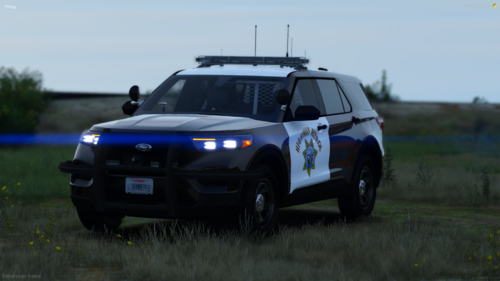 You can change the pattern for the traffic advisor yourself in the els file, the steady burn wich burns with the traffic advisor is because it is extra 10, you can also toggle the traffic advisor with "K".
- 61 comments
- 10 reviews
-
-
-
I will have a look on it, I have no clue what it could be but I will try to fix it!
- 61 comments
- 10 reviews
-
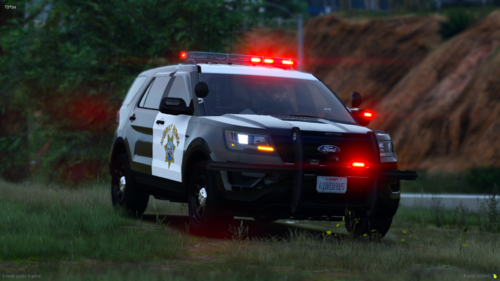 Hello, this isnt a multi livery vehicle Im sorry.
 -
-
I personally dont have the problem and I haven't heard of anybody else having this problem. So I am afraid I wouldn't be able to help you. I'm sorry.
- 61 comments
- 10 reviews
-
The traffic advisor is because of how i attached the extras. Maybe try using my els file?
- 61 comments
- 10 reviews
-
 I will have a look!
 -
-
-
-
-
Released! (2 cars) Released!
-
-
Released!
-
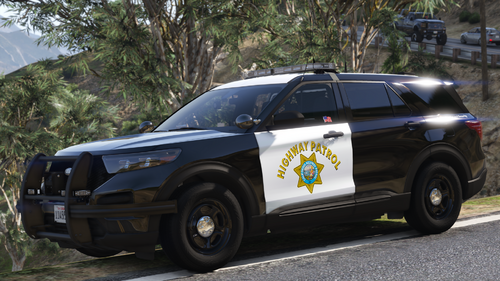
I made this CHP Explorer 2020 because its the CHP duhh. Video link : https://streamable.com/o3zyqp
- 61 comments
- 10 reviews
-
-

-

-

- 12
-
-
Yeah, thats because of my els settings but it should be the correct speed in the els file. And thanks man!
-
https://streamable.com/1wyhgs
-
Fixed thank you!



.gif.4d4b7b8997d019e9af85ea60742b162a.gif)