



irishtimezones
Members
-
Joined
-
Last visited
Everything posted by irishtimezones
-
 Its called "External" for a reason, read the description and follow their steps
- 217 comments
- 22 reviews
-
-

- 1
-
-
 absolute legend i was so stumped
 -
 This is probably a known issue, or just an issue to me. But some vehicles disappear at a VERY close distance, as in 10-15 feet. I'm aware of how to fix this, and currently am, adjusting lodDistances, but its a very tedious task, perhaps you should look into this? I believe one of the vehicles which disappear is the fhp36 and fhp37. Note: the vehicles which are affected are the FHP36-FHP43. When looking at the vehicle files in openiv, the regular yft's are unusually small, while the _hi are much larger, perhaps this may be the cause of the issue? The regular yft's actually appear invisible in openiv as a matter of fact.
- 294 comments
- 21 reviews
-
-

- 1
-
-
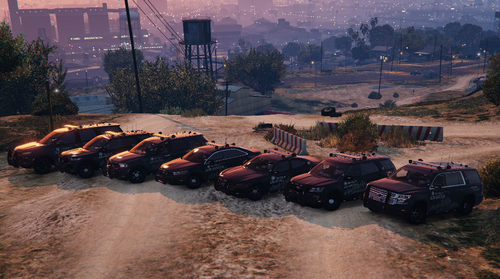 to replace default vehicles as backup, if you're using UB, change the models in DefaultRegions.xml, for regular LSPDFR, update them in the agency.xml file and duty_selection.xml
- 239 comments
- 15 reviews
-
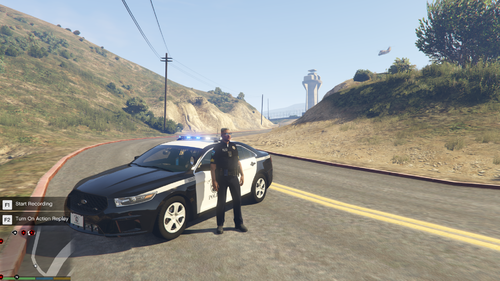 i dunno if you'll see this but there isnt any wardrobe file and the google drive link is invalid?
 -
-
 is that really all that has to be edited? seems like a bit little for it to work but ill give it a go
- 30 comments
- 4 reviews
-
 suggestion for a future pack, maybe a generic canadian one? i saw you already have one uploaded but its for EUP 8.1 and doesnt have backup configs
- 47 comments
- 5 reviews
-
-


.thumb.jpg.7475d73024fea977a97341d50baca844.jpg)