



CafeRacer
-
Joined
-
Last visited
Everything posted by CafeRacer
-
-
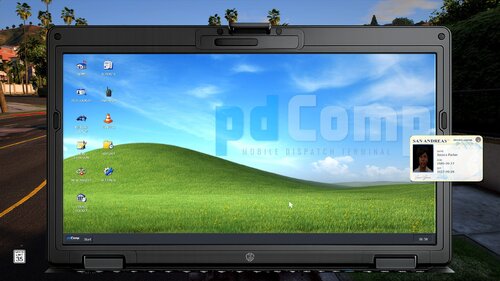 So I figured out what plugins interfere with mine. Do you happen to have a discord? may be easier to communicate through there but for the mean time I found DLS and SimpleCtrl keys stay active while in the computer. Once I unloaded those plugins the keybinds did not activate while using the mdt.
- 396 comments
- 43 reviews
-
Great PD mdt/cad/computer. Perfect replacement to use along side Policing Redefined and NPCAI. Syncs with ID/DL and stopped vehicles.
- 396 comments
- 43 reviews
-
-

- 1
-
-
Hey just want to say great mdt/cad! exactly what we need especially to work along side PR and NPCAI. As previously mentioned by others if you do not pause the game first then while typing whatever keys you press interact with the game. I saw that you are trying to not make it so the game does not pause so that you can wait for tow/coroner etc while writing your report but maybe somehow have it as block keys while the mdt is open. Other than that it works great sync perfect with ped ID and vehicles. Keep up the great work!
- 396 comments
- 43 reviews
-
.thumb.png.656f907bc2febc81911b0b821cb502c8.png) Great work! This is amazing, makes patrols so much more immersive. Keep it up!
Great work! This is amazing, makes patrols so much more immersive. Keep it up!- 351 comments
- 45 reviews
-
-
-

- 2
-
-
.png.b28e49ff3acdc74a1b4e6be277ce63d3.png)
From the album: Liveries made
© Cafe Racer Designs
-
This is an album containing some of the liveries I've made. Some are based off of real departments, and others just made up ones.
-
Screenshot 2023-01-27 14-23-47 (2).png
-
.png.6b1cd0cc0308cbd878c60401214fb40b.png) Screenshot 2023-01-27 14-22-58 (2).png
Screenshot 2023-01-27 14-22-58 (2).png
-
.png.f802b3e702081a53ae1b12fbac306d0f.png) Screenshot 2023-01-27 13-39-52 (2).png
Screenshot 2023-01-27 13-39-52 (2).png
-
.png.4626c32c0d49b36b5241c5fb1fae96da.png) Screenshot 2023-01-27 13-36-50 (2).png
Screenshot 2023-01-27 13-36-50 (2).png
-
.png.235bd46904c4bf05f72f0a744ce1ff89.png) Screenshot 2023-01-27 13-35-42 (2).png
Screenshot 2023-01-27 13-35-42 (2).png
-
.png.0e0a3553363eca47a434d5d7a96c49c5.png) Screenshot 2023-01-27 13-32-50 (2).png
Screenshot 2023-01-27 13-32-50 (2).png
-
.png.4fa055e8131ad2c358062cc451b231e3.png) Screenshot 2023-01-27 12-14-08 (2).png
Screenshot 2023-01-27 12-14-08 (2).png
-
.png.5acb4936cf7754b9e95baa474cb8d795.png) Screenshot 2023-01-27 12-13-49 (2).png
Screenshot 2023-01-27 12-13-49 (2).png
-
.png.97d582c1ae20d511438658d9d5a5546e.png) Screenshot 2023-01-27 12-13-32 (2).png
Screenshot 2023-01-27 12-13-32 (2).png
-
.png.ed7df9a1fed251b522e8424bd9c912b7.png) Screenshot 2023-01-27 12-11-24 (2).png
Screenshot 2023-01-27 12-11-24 (2).png
-
 Screenshot 2022-11-17 19-37-17.png
-
 Screenshot 2022-08-11 14-34-31.png
-
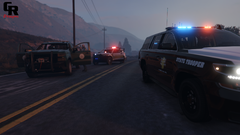 Screenshot 2022-08-10 12-35-45.png
-
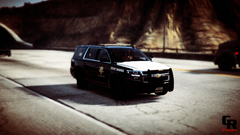 Screenshot 2022-08-10 12-22-06.png
-
Screenshot 2022-08-10 12-22-06.png -
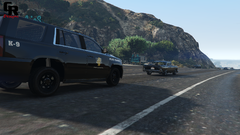 Screenshot 2022-08-10 11-54-28.png
-
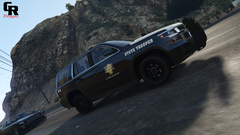 Screenshot 2022-08-10 11-52-30.png
-
.png.8579f9d8d338f7c7020a2e0a6770a038.png) Screenshot 2022-04-01 14-01-00 (2).png
Screenshot 2022-04-01 14-01-00 (2).png
-
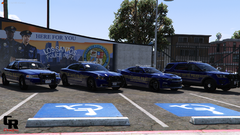 Screenshot 2022-03-31 09-17-56.png
-
.png.95cee654d0b0736931cdbddc221e819a.png) Screenshot 2022-03-31 09-15-04 (2).png
Screenshot 2022-03-31 09-15-04 (2).png
-
-
From the album: Liveries made
© Cafe Racer Designs
-
From the album: Liveries made
© Cafe Racer Designs
-
From the album: Liveries made
© Cafe Racer Designs
-
From the album: Liveries made
© Cafe Racer Designs
-
From the album: Liveries made
© Cafe Racer Designs
-
From the album: Liveries made
© Cafe Racer Designs
-
From the album: Liveries made
© Cafe Racer Designs
-
From the album: Liveries made
© Cafe Racer Designs
-
From the album: Liveries made
© Cafe Racer Designs
-
From the album: Liveries made
© Cafe Racer Designs
-
From the album: Liveries made
© Cafe Racer Designs
-
From the album: Liveries made
© Cafe Racer Designs
-
From the album: Liveries made
© Cafe Racer Designs
-
From the album: Liveries made
-
From the album: Liveries made
© Cafe Racer Designs
-
From the album: Liveries made
© Cafe Racer Designs
-
From the album: Liveries made
© Cafe Racer Designs
-
From the album: Liveries made
© Cafe Racer Designs


.thumb.png.656f907bc2febc81911b0b821cb502c8.png)
.png.b28e49ff3acdc74a1b4e6be277ce63d3.png)
.png.6b1cd0cc0308cbd878c60401214fb40b.png)
.png.f802b3e702081a53ae1b12fbac306d0f.png)
.png.4626c32c0d49b36b5241c5fb1fae96da.png)
.png.235bd46904c4bf05f72f0a744ce1ff89.png)
.png.0e0a3553363eca47a434d5d7a96c49c5.png)
.png.4fa055e8131ad2c358062cc451b231e3.png)
.png.5acb4936cf7754b9e95baa474cb8d795.png)
.png.97d582c1ae20d511438658d9d5a5546e.png)
.png.ed7df9a1fed251b522e8424bd9c912b7.png)
.png.8579f9d8d338f7c7020a2e0a6770a038.png)
.png.95cee654d0b0736931cdbddc221e819a.png)