



blakelspdfr
Members
-
Joined
-
Last visited
Everything posted by blakelspdfr
-
 Thanks!
 -
I will upload a new one give me 10 mins also make sure you have winrar
-
What do you mean it says invalid?
-
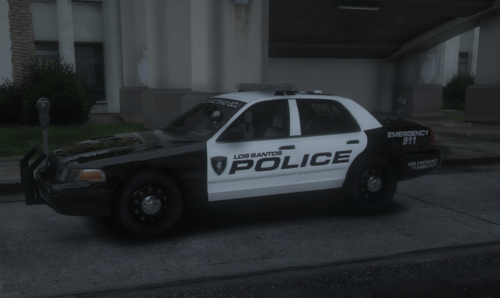
DISCLAIMER: Before downloading you must download BOYDEAD02's LSPD Houston Police Dept Vehicles. His pack is where the vehicle models and original vehicle textures are stored. INSTALLATION: Pick your choice through the downloaded zip and replace the vehicle texture according to name for each .ytd file. Any questions or concerns? Contact me via discord: OfficerBlake 2024 - OfficerBlake These vehicle textures were specifically made for Wikd's LSPD Mega Pack (Badges come from this EUP as well)
-
.thumb.jpg.8131f0a8d74d0a530a20212fec80090e.jpg) I will look into it.
I will look into it. -
Haha, thank you.
-
Ty ❤️
-
Sounds will be released soon, waiting on Firetruck and Ambulance sounds
-
I know its def possible to do the ambulance sirens.
-
of course, I will provide the raw files.
-
I will try to get it added in the next update.
-
I will see what I can do man.
-
INSTALLATION: Drag And Drop The "x64" Folder Into Your GTA 5 Directory C:\Program Files (x86)\Steam\steamapps\common\Grand Theft Auto V DISCLAIMER: These files were not made by myself, they are combined files from many sound packs to make the best-sounding realistic pack. This is a massive help for a lot of people who want a bunch of sounds but don't want to do the work of actually installing them one by one manually. For any support needed on the sounds add me on Discord: officerblake 2023 - OfficerBlake


.thumb.jpg.8131f0a8d74d0a530a20212fec80090e.jpg)
