McAwesome6934
Members
-
Joined
-
Last visited
Everything posted by McAwesome6934
-
I'm 17 Plan On Becoming Police Officer For The Coon Rapids Police Department, Then The Minnesota State Troopers. Things I've done to reach this goal- 3 College Classes In Law Enforcement (equivalent to 4 College Credits), Passed NOCTI Test In The Top 20%, Peer Mediator Program At High School, Police Explorers Program
-
Wow nice job! The contrast and uniqueness of the yellow and blue is very nice.
- 4 comments
- 6 reviews
-
-

- 2
-
-
Awesome ! Gonna use this for "stakeouts" and stuff! I love the amount of detail you put into this! 7/5
- 21 comments
- 22 reviews
-
I am not a 'computer person', but in order to get the most 'bang for your buck' I highly recommend buying the parts individually and building them yourself. This website is also pretty 'accredited' and is reasonably priced. It list pre-built computers and parts. - Lastly I suggest you change your original post and give a price range instead of just saying "relatively cheap" Hope I helped, McAwesome6934
-
Looks really good slimory!
-
All Credits go to hlsavior. No ETA on release has been given yet.
-
 Speed Trap (03)
-
 Speed Trap (02 Far)
-
 Speed Trap (01)
-
 S.T. CVPI Code 3
-
 Meal Break Burger Shot (02)
-
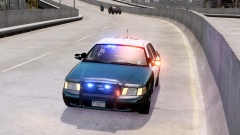 S.T. CVPI Code 3 (02)
-
 S.T. CVPI (02)
-
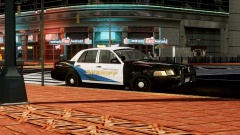 S.T. CVPI (01)
-
 Meal Break Burger Shot (03)
-
 Meal Break Burger Shot (02)
-
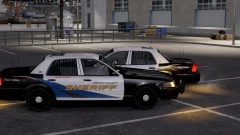 Meal Break Burger Shot (01)
-
 CVPI Code 3 (01)
-
 Code 3 Industrial
-
 Code 3 Industrial (03)
-
 Code 3 Industrial (02)
-
-
From the album: Savior's W.I.P.
Hlsavior's slicktop CVPI. Testing is all going well, no release date yet -
From the album: Savior's W.I.P.
Hlsavior's slicktop CVPI. Testing is all going well, no release date yet -
From the album: Savior's W.I.P.
Hlsavior's slicktop CVPI. Testing is all going well, no release date yet -
From the album: Savior's W.I.P.
Hlsavior's slicktop CVPI. Testing is all going well, no release date yet -
From the album: Savior's W.I.P.
Hlsavior's slicktop CVPI. Testing is all going well, no release date yet -
From the album: Savior's W.I.P.
Hlsavior's slicktop CVPI. Testing is all going well, no release date yet -
From the album: Savior's W.I.P.
Hlsavior's slicktop CVPI. Testing is all going well, no release date yet -
From the album: Savior's W.I.P.
Hlsavior's slicktop CVPI. Testing is all going well, no release date yet -
From the album: Savior's W.I.P.
Hlsavior's slicktop CVPI. Testing is all going well, no release date yet -
From the album: Savior's W.I.P.
Hlsavior's slicktop CVPI. Testing is all going well, no release date yet -
From the album: Savior's W.I.P.
Hlsavior's slicktop CVPI. Testing is all going well, no release date yet -
From the album: Savior's W.I.P.
Hlsavior's slicktop CVPI. Testing is all going well, no release date yet -
From the album: Savior's W.I.P.
Hlsavior's slicktop CVPI. Testing is all going well, no release date yet -
From the album: Savior's W.I.P.
Hlsavior's slicktop CVPI. Testing is all going well, no release date yet -
From the album: Savior's W.I.P.
Hlsavior's slicktop CVPI. Testing is all going well, no release date yet -
Yes! Please release those models, they are amazing!!!
-
Not a police "car" but still very nice nonetheless
-
-