


MrKey
Members
-
Joined
-
Last visited
Everything posted by MrKey
-
Thanks very much now is work
-
Ok 👍🏻 Brother, how can you exhale the one you told me about 🙂
-
Yes i Have
-
I will send you the programs and you say what program did I close? I apologize because my English is bad and I translate from Google some words that I do not understandI mean, I don't close the GeForce experience ؟ Combinations like what?This is the course of the game and see if something changed or not, and I am a little newbie
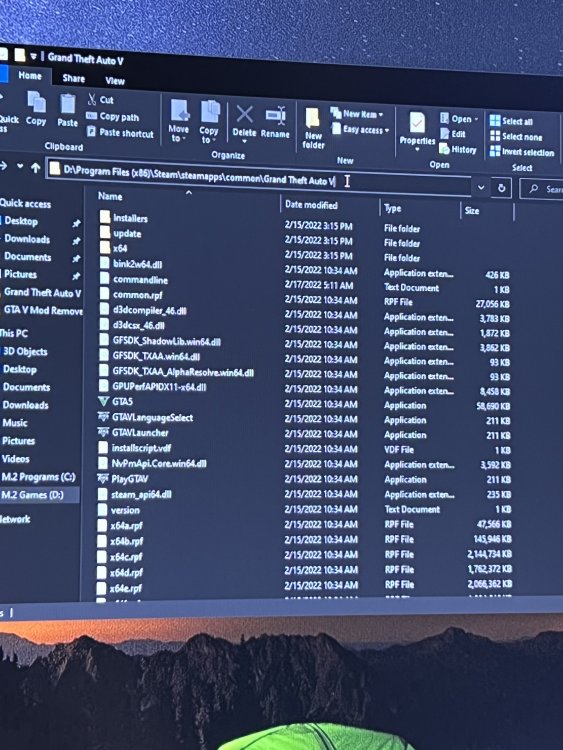 I didn't turn on antivirus and I didn't do anything with the files. I'm now out of the house, can I contact me in any other program that photographed you game files and everything? When I come home? How can I rename it and what is renamed?this Problem
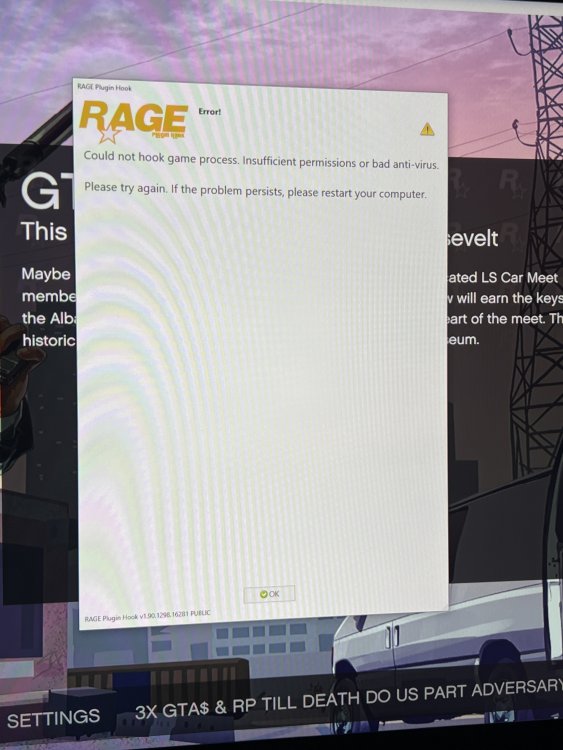 The situation is not working for me, I did everything you say, I turned off the antivirus and the same problem, what is the solution):The situation is not working for me, I did everything you say, I turned off the antivirus and the same problem, what is the solution):


