RageDemond
Members
-
Joined
-
Last visited
Everything posted by RageDemond
-
I followed the directions on installing it in the readme I am going to go watch the YouTube Video
-
My game doesn't crash that quickly with it installed. Maybe 20-30 minutes. The only thing it says for me is error in script even when i reloadscripts. Anyone else getting the same issue?
-
I keep Getting This Eror Please Help
-
The one I use...
-
Did you update your entire computer?
-
Hey Guys, So I have been looking for an ENB that makes my game look nice and everyone I have tried they just make my game mess up and I end up having to reinstalling my game. My Computer Specs. Windows 7 Home Premium Copyright © 2009 Microsoft Corporation. All rights reserved. Service Pack 1 System Manufacturer: Hewlett-Packard Company Model: p7-1026 Rating: 6.7 Processor: AMD Phenom II X4 840T Processor 2.90 GHz Installed Memory (RAM): 10.0 GB System Type: 64-bit Operating System Pen and Touch: No Pen or Touch Input is available for this display Graphic Card: AMD Radeon HD 6700 Series
-
i dont use photo shop i use gimp
-
Are you running it as an administrator? Is the SparkIV Launch still in the folder that it came in?
-
if you have the sirens it the file should be named Horns,IVAUD. I prefer to use SparkIV but all you have to do go to AUDIO, SFX, double click on resident.rpf and when your in their import the custom siren/horn.ivaud Then go play! Hope it worked!
-
I have seen that the NYS Troopers use Dodge Rams. Honestly myself I prefer the Chevy Silverado
-
Also I think you might know already but you need to register it or else on the top of the video it says www(.) bandicam(.) com. and you can only record for 10 minutes.
-
I use Bandicam. The file is smaller and easier to upload. With FRAPS, I took a 10 minute GTA Role-Play video and it was over 1GB. Bandicam I can record for 30 and its almost 1GB. Hope I helped.
-
yes status I Need To Do This And i Am Having Trouble You must make sure that ServerQuery permissions are enabled. Make sure you are logged onto your server as an administrator. Click on your "Permissions" menu. Navigate to "Server Grous" -> "Guest". In the window that appears, make sure that all of the following permissions in "Virtual Server" -> "Information" are turned checked: ServerQuery: View Virtual Server Info ServerQuery: View List of Existing Channels ServerQuery: View List of Clients Online You will also want to make sure that the following two permissions in "Group" -> "Information" are checked: View List of Server Group Members View List of Channel Group Members
-
i need help doing this on my ts http://wiki.enjin.com/wiki/TeamSpeak_3_Status
-
i need help with my teamspeak
-
but can you help me
-
if some one could help me please pm me and i will tell you
-
Your server was last fetched at Feb 23 2013, 10:44:25 The following problem occurred: connection failed, you are banned for serverquery://ts101.light-speed.com:10012/?server_port=4300&timeout=3
-
From the album: Police Cars
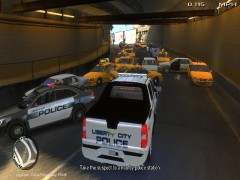
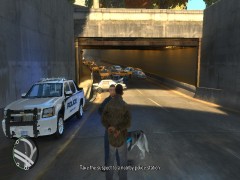
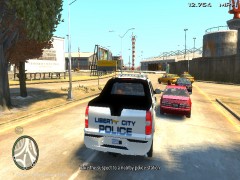
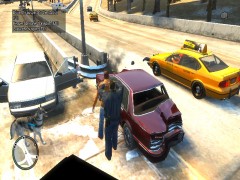
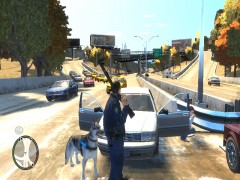
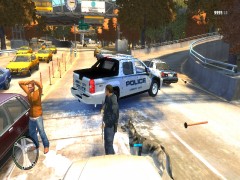
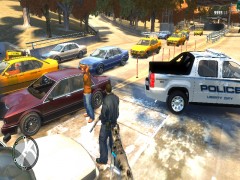
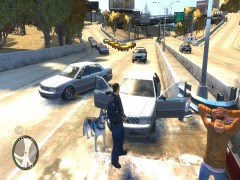
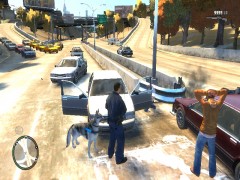
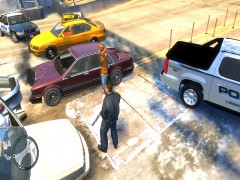
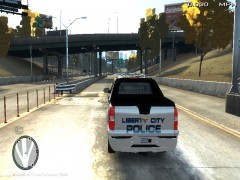
Picture of a pile up that took place when I performed a trafic stop on a yellow taxi cab for going 25MPH under the speed limit. I grabbed on the Dukes-Broker Expressway in Francis International Airport. When I ran his license he had 7 Ciatation, Revoked License, and a Warrant for his arrest. When I approched his car to pull him out before anything he returned fire! Everyone in the area backed up and was crashing into each other and running leaving behind their cars causing more people to pile up causing a big pile up. The Suspect was taken down and arrested. Nobody was hurt. -
-
From the album: Police Cars
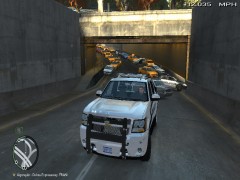
Picture of a pile up that took place when I performed a trafic stop on a yellow taxi cab for going 25MPH under the speed limit. I grabbed on the Dukes-Broker Expressway in Francis International Airport. When I ran his license he had 7 Ciatation, Revoked License, and a Warrant for his arrest. When I approched his car to pull him out before anything he returned fire! Everyone in the area backed up and was crashing into each other and running leaving behind their cars causing more people to pile up causing a big pile up. The Suspect was taken down and arrested. Nobody was hurt. -
From the album: Police Cars
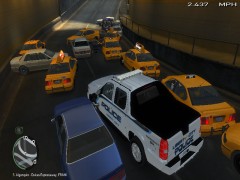
Picture of a pile up that took place when I performed a trafic stop on a yellow taxi cab for going 25MPH under the speed limit. I grabbed on the Dukes-Broker Expressway in Francis International Airport. When I ran his license he had 7 Ciatation, Revoked License, and a Warrant for his arrest. When I approched his car to pull him out before anything he returned fire! Everyone in the area backed up and was crashing into each other and running leaving behind their cars causing more people to pile up causing a big pile up. The Suspect was taken down and arrested. Nobody was hurt. -
From the album: Police Cars
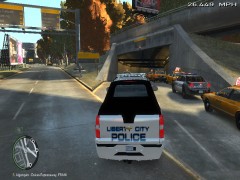
Picture of a pile up that took place when I performed a trafic stop on a yellow taxi cab for going 25MPH under the speed limit. I grabbed on the Dukes-Broker Expressway in Francis International Airport. When I ran his license he had 7 Ciatation, Revoked License, and a Warrant for his arrest. When I approched his car to pull him out before anything he returned fire! Everyone in the area backed up and was crashing into each other and running leaving behind their cars causing more people to pile up causing a big pile up. The Suspect was taken down and arrested. Nobody was hurt. -
From the album: Police Cars
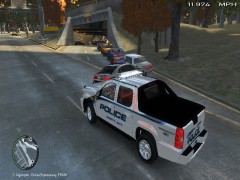
Picture of a pile up that took place when I performed a trafic stop on a yellow taxi cab for going 25MPH under the speed limit. I grabbed on the Dukes-Broker Expressway in Francis International Airport. When I ran his license he had 7 Ciatation, Revoked License, and a Warrant for his arrest. When I approched his car to pull him out before anything he returned fire! Everyone in the area backed up and was crashing into each other and running leaving behind their cars causing more people to pile up causing a big pile up. The Suspect was taken down and arrested. Nobody was hurt. -
From the album: Police Cars
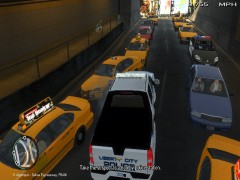
Picture of a pile up that took place when I performed a trafic stop on a yellow taxi cab for going 25MPH under the speed limit. I grabbed on the Dukes-Broker Expressway in Francis International Airport. When I ran his license he had 7 Ciatation, Revoked License, and a Warrant for his arrest. When I approched his car to pull him out before anything he returned fire! Everyone in the area backed up and was crashing into each other and running leaving behind their cars causing more people to pile up causing a big pile up. The Suspect was taken down and arrested. Nobody was hurt.