


hochland.
Members
-
Joined
-
Last visited
Everything posted by hochland.
-
also when loading the game itself with LSPDFR - it lasts indefinitely
-
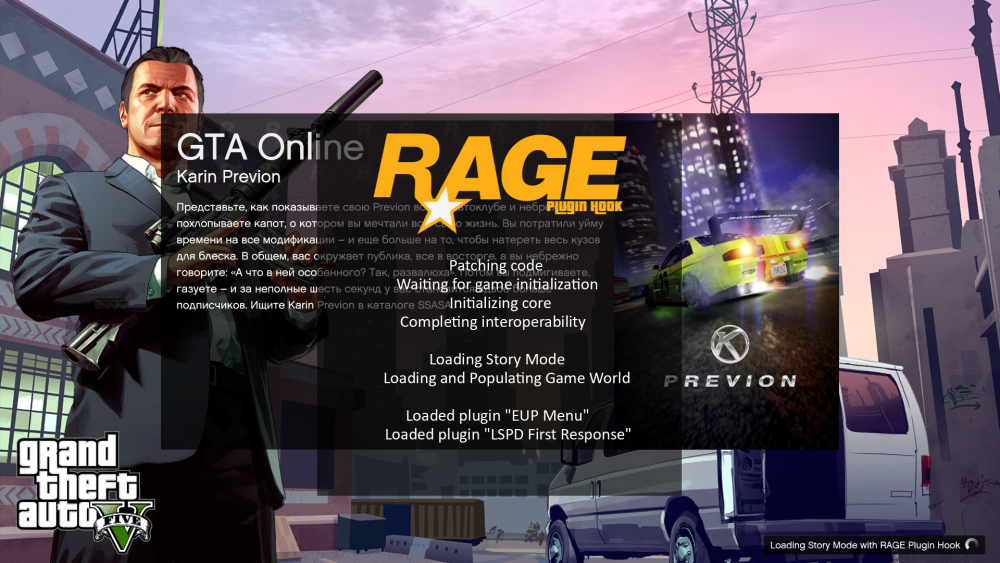
I don't know, maybe you didn't quite understand, but I meant the window in the third screenshot. Earlier, when I played on a similar build, everything was shown (all plugins, literally)
-
I want to point out that I have updated the Rage plugin hook, in the hope that it will help me solve the problem. But only some files like "Mono....." appeared in this window
-
привет, нашёл своего 🙂 Была такая же проблема, когда гта 5 обновили, и в эпике, и в стиме, насколько знаю. Так же, насколько мне известно - надо просто обновить rage plugin hook, это мне и помогло. Следом там скриптхук ещё обнови, если он будет тоже ошибку выдать после обновления rage plugin hook
-
Hello everyone. Such a problem, my plugins don't show up in the RagePluginHook window when I launch it with GTA, hence they don't launch. What should I do in this case? I can provide screenshots. (yes, there are a lot of plugins, but I just want more chases :D) And forgive me in advance, for my English, I wrote this text through a translator, because I'm from Russia and my English skills are not so good (yes, there are a lot of plugins, but I just want more chases :D) I will be glad if you help me with this problem 🙂 I did everything in a Russian video that told me how to install LCPDFR, and I don't know if this window can be removed somehow (maybe it's the person who explained the installation)
.thumb.png.5f63f2e0d6b0b33715f11ff6c276361c.png)
.thumb.png.561706369ffd667fb5ad5334a1b2a48e.png)
.thumb.png.0a48cd156b98063707fc006ff4d0e81f.png)

.png.7c6411b50e73f77b2e298a0105f11661.png)
.png.8fb35d8d7cf35c2950f0211f74edc58c.png)
.png.ee94e5b83b258f2d62998db1b31cf5d7.png)