


enekogp24
Members
-
Joined
-
Last visited
Everything posted by enekogp24
-
RagePluginHook.log
-
hola, tengo un problema, cuando acepto una llamada se me traba 1 segundo y luego me pone que lspdfr.dll se ha crasheado, ¿alguna solucion?
-
ok, I already fixed it, I just reinstalled it and it worked, I don't know why but before it didn't work, anyway thanks.
-
I reinstalled lspdfr as you said and watch a video of installing unitedcallouts but when I put the LSPDFR folder in the plugins folder in the console it does not recognize it as a plugin and I cannot load it and when I put it without the LSPDFR folder it recognizes it as a plugin but It tells me that it was skipped but if lspdfr loads it, I don't know what to do to make it work, by the way I have the option to load all the plugins on startup.here is a screenshot of what it puts on the console.look at the cursor, i'm pointing what it says from unitedcallouts here is another screenshot
.thumb.png.59b2e4b65f9c4e19df5e142e5f4c134a.png)
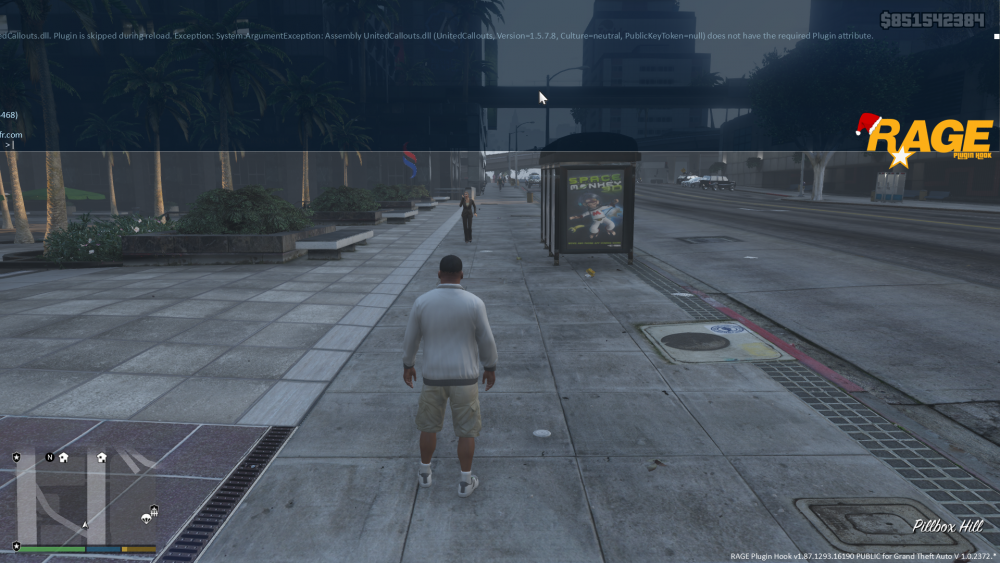
-
but i dont have a LSPDFR folder in the plugins folder, i installed it with the manual instalation
-
Hello, it happens to me that both in the game and in the configuration of the ragepluginhook it does not appear as a plugin, in the game when I put the command loadplugin unitedcallouts.dll I give it to enter and it says: ERROR: could not load plugin from C / program files / epic games / GTAV / plugins / unitedcallouts.dll parameter name: assembly path. and I can only play with the default callouts and in the configurator of the ragepluginhook it does not come out as a plugin to load it at startup,here I have a screenshot.
.thumb.png.276e2aa63c3aa4b99b5e01ed73e48094.png)
-
oh, sorry for the title in spanish, i forgot to translate it
-
Hello, it happens to me that both in the game and in the configuration of the ragepluginhook it does not appear as a plugin, in the game when I put the command loadplugin unitedcallouts.dll I give it to enter and it says: ERROR: could not load plugin from C / program files / epic games / GTAV / plugins / unitedcallouts.dll parameter name: assembly path. and I can only play with the default callouts and in the configurator of the ragepluginhook it does not come out as a plugin to load it at startup,here I have a screenshot.
.thumb.png.5293ccaa1b78b30cc83c09e1a7cd1bd7.png)
-
Ok if it was the scripthook V and the .net, I hope everything goes well and it doesn't crash, I'll wait in case any other problem arises, bye
-
It did not work, as soon as I tried to load the lspdfr plugin it crashed and did not give any error by the way, do I need scripthookV or scripthookV.net? I have both, if they are not needed, the problem may be that.
-
RagePluginHook.log
-
hello, the problem is that when starting gta5 in epic with the ragepluginhook a window pops up saying grand theft auto has crashed! please wait while ragepluginhook generates a crash report. I already tried several times, also installing ragepluginhook from the official page and It doesn't work and I get the same error all the time. i removed all the mods from the gta folder, I don't have a copy of the folder because I don't have space to do it and since I'm here I have a question, because in the setup it appears that need 90 gb? I followed several tutorials and none worked, I looked in the forums and there was nothing, and also, how can I upload an image? I have one of the error, I am from epic. ok I know how to upload images here is one of the error
.thumb.png.98cf8449c6494fd90b5166a432bc37fa.png)
.png.16e7664d194b16bc76d1a30fdac21015.png)

.png.a5a4f2678fd2d6fa3f7409beabbb9b2c.png)
.png.113bc6359230cd739e2c1c3c311e642a.png)
.png.2e329d00e06772f412e2f17eec2a5ecb.png)