


blackbackpack
Members
-
Joined
-
Last visited
Everything posted by blackbackpack
-
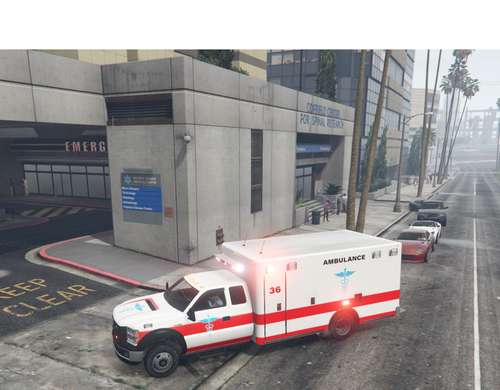 Hi everyone! This is my very first creation and I would like to share it with you, I'll bring more and better textures in the near future Big thanks to the original model (you need to download it) This is a very simple ambulance and I was based in one of the first ambulances I saw in my first videogames, Sims 2. And although this is not a copy, I'm working on a better version, this is just a slighthy based. Thank you so much guys!! If you have any suggestion of any type, leave it in the comments, I'll be very happy to read anything 🙂 Credits Lt. Caine- Whelen Perimeter Lighting Base GTAV vehicle models made by Rockstar Games and modified by Lt.Caine. Vehicles remapped and reworked by Lt.Caine. Vent on Vapid V450 made by Lt.Caine. Some Vapid V450 model edits, including extra lights by BxBugs123. Yard1 for fixing vehicle glass collision issues on the Granger model. solo- Whelen Edge *Modified into Ultra Freedom by Patrol 31* Vertex3D- Whelen 400 series module Motorola XTL5000 radio by OfficerUnderwood Whelen 295SL101 scratch modeled by Five0/OfficerFive0 converted to gta 5 by Five0/OfficerFive0 Havis console by Codex12 Park Ambulance skin by PNWParksFan Fire and EMS skins by Yard1 Assembled by Patrol 31

