


Robert332
Members
-
Joined
-
Last visited
Everything posted by Robert332
-
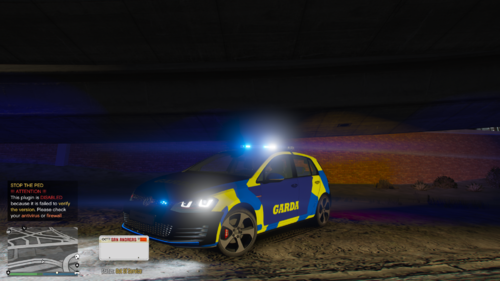 🇮🇪 Irish Garda VW MK7 – Donegal Rally 2024 Edition Transform your patrols with this authentic Garda Síochána livery for the Volkswagen MK7 — based on real-life Irish police presence at the Donegal Rally 2024. (Not identicle, but is similar) This livery features: ✅ Features: ✔️ High-resolution blue & yellow Battenburg pattern ✔️ Bold GARDA branding on doors and rear ✔️ Garda crest with accurate placement ✔️ Rally-themed accents for a modern patrol look ✔️ Designed for realism in LSPDFR ✔️ Built specifically for the VW MK7 add-on 🚗 Vehicle Compatibility: This livery is designed for: VW GTI (Add-on or Replace) [Insert MK7 vehicle mod download link here, if you're using a public one] If you’re using a custom/private model, make sure it supports liveries and UV mapping. 📦 Installation Instructions: Open OpenIV Go to the directory where your VW MK7.ytd file is located (e.g. mods/update/x64/dlcpacks/...) Open the .ytd file Replace the livery texture (sign_1, etc.) with the provided .png Save changes, launch GTA V, and spawn your MK7! 📝 Notes: This is a fan-made, high-accuracy design — not affiliated with An Garda Síochána Based on real visuals seen at Donegal Rally 2024 Ideal for Irish roleplay communities, EU patrols, or general LSPDFR use You may rename the texture file if using as sign_2, sign_3, etc.
- 1 comment
- 1 review
-
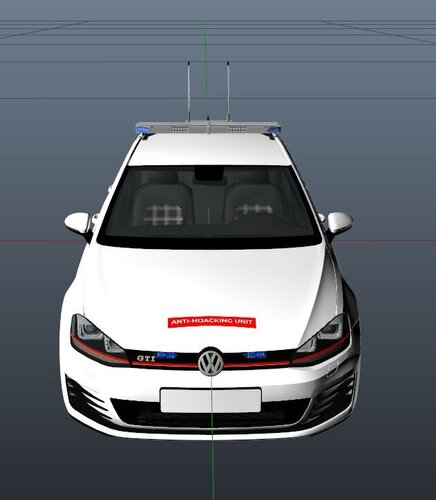 Bring true South African law enforcement realism to GTA 5 with this high-detail Volkswagen GTI Anti-Hijacking Unit vehicle, inspired by Anton Koen’s legendary NoJack team. This mod was designed for South African LSPDFR players who want to patrol in style and realism—chasing hijackers, recovering stolen vehicles, and keeping the streets safe. 🛡️ Features: Authentic Anti-Hijacking Unit livery (NoJack inspired) Blue and red emergency lights (ELS supported) Functional lightbar + antennas Custom South African police interior equipment Realistic GTI model with detailed textures Ready for single-player & FiveM (addon or replace) 🧩 Installation: Drop into mods/update/x64/dlcpacks/ folder and follow the included readme for full setup. Includes .meta files and ELS config. 📦 Perfect for: South African LSPDFR patrols Realistic carjacking recovery gameplay Fans of Anton Koen, NoJack, and tactical interceptors GTA 5 SA modding community 🚨 Stay safe, stay sharp, and keep the criminals running. 🇿🇦
 -
This doesnt work!! Ive been watching tutorials and none of my files are importing to zmod.I take the model with the files when i click import nothing happens>>>Make a simple video of a z3d file and that it doesnt help you copy other videos on yt cause then this vid is useless in my opinion
-
So im making an unmarked gti and have placed in 4 whelen ION's. In game i press J and code3 is on i push J again and code 2 goes on wtf......Thats least of my worries hehe my main prob is that when i place in my avengers for my windscreen i place in a dummy helper and then place everything of the light in it i then made 2 copies of the avengers so that i can change the lights to blue and white and add red with red an blue to blue....i renamed as siren 1-4 and siren 2-3 as 1-4 are in 1 group...But then in game i put my siren on and the whole light moves to the 4 sides of my car..?Ive been on yt and no where is showing why and how to do it... Pls explain the steps of doing it tia :)
