


amplifiedbros
Members
-
Joined
-
Last visited
Everything posted by amplifiedbros
-
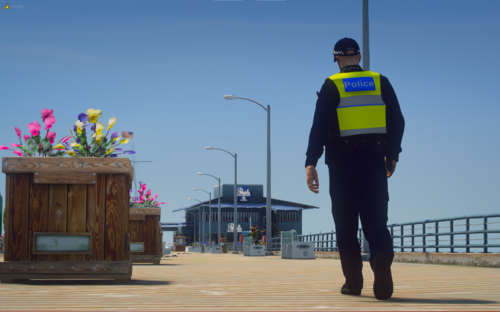 Hey @Berk0S, It seems like you've installed the wrong vest model. Please download and install this one:
 -
.png.d6e3e616d62107672b0632d33ddc73cc.png) Hey @Ozzzy, I love your work mate. Just wondering if these liveries are available for download now or if they will be in the future.
Hey @Ozzzy, I love your work mate. Just wondering if these liveries are available for download now or if they will be in the future. -
-
-
Hello, I've got an issue where when I install POLICE3 and FBI2, they aren't showing in game unlike my other models. FBI2 has worked previously but since then I have reinstalled GTA V and I think I may have done something differently but I don't know what. Additional information:' I use OpenIV for installation, My LSPDFR is up-to-date, I've successfully installed POLICE, POLICE2, SHERIFF, SHERIFF2, FIRETRUK, AMBULANCE, PRANGER, FBI and RIOT Thanks.
-
.png.046d6e9613ddb6d657640f1ca447d523.png) G'day mate, Beautiful work with all of your models and liveries, Just wondering if you're going to make them public. Keep up the good work.
G'day mate, Beautiful work with all of your models and liveries, Just wondering if you're going to make them public. Keep up the good work. -
-
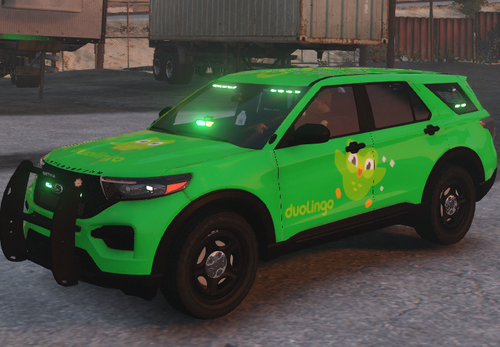 haha, this should be a meme
 -
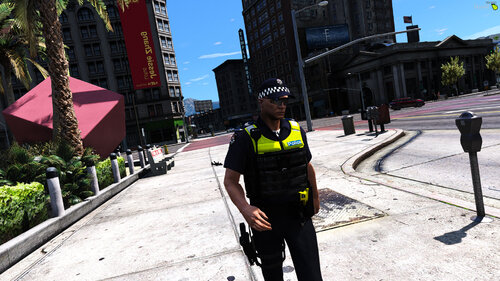 If you would like a VicPol Uniform (incl. Vest) you may be able to find what you want in this pack. You do need install another uniform pack in order for the LBV to work. The EUP Pack by Patricktan112 does have a couple more models and textures that Nicks pack does not.
- 31 comments
- 1 review
-
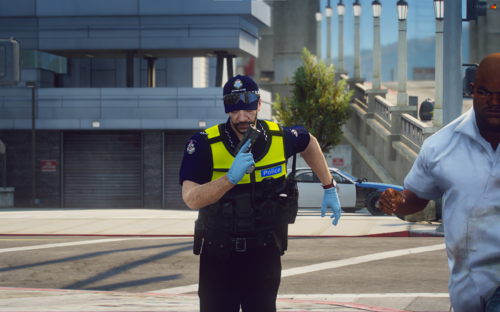 G'day @AzpectYT, There is an additional file that you need to download (found here: ). There are links in the read me and just above for more parts of the uniform that maybe missing. I also found this problem initially but recently figured it out. You will need to rename the file to task_008_u.ydd and add it to the folder with the textures. Thanks.
 -
G'day @arsh93, at the moment there are any wardrobe files but I am looking into making one and you do require some additional files to get all of the textures to work. They are linked in the README and CREDITS.

.png.d6e3e616d62107672b0632d33ddc73cc.png)
.png.be484832a45a1881e76aeeb3abbb19d1.png)
.png.c539b7b33b892059dba1b24a9bc22b10.png)
.png.d8970adae73fdfe41b7d0e8a92e8ff1a.png)
.png.91b36b45a39088f7c1ef922ae2e80c11.png)
.png.1e9f193c2e97535744e9b083074a1b6a.png)
.png.6398bd36385af009ae9f446a4f3b08a9.png)
.png.ef4e8943d201cade5a888dfbaefc0ff4.png)
.png.1bb334f2d2ccc8539a14d9d495733ea9.png)
.png.922e064f42f05c2120555eb9e618349e.png)
.png.172d896f92eeb77858ba05ce0b0ce459.png)
.png.cc3718b0687ec830db9720a78eea2a46.png)
.png.8a3d5ed55f42a72cefc1aed6eb0a74df.png)
.png.02a1962c32376a7df640858fa93410b7.png)
.thumb.png.c6975f855aa984b46ca80ee262b62769.png)
.png.046d6e9613ddb6d657640f1ca447d523.png)
.png.0ab1e790f3b23866a1ccaeb5aeb38376.png)
.png.e3969ee83f9d589bb38b7103254377f7.png)


