.gif.f687f0bceffa834a15420743d0c55e3f.gif)
erinesc
Members
-
Joined
-
Last visited
Everything posted by erinesc
-
Sorry for the late response. Yes I downloaded it twice, no difference.
-
Manual install
-
I've given up trying to find a fix for this, I've spent a whole day attempting to fix it. I've reinstalled LSPDFR, and removed plugins. Without any plugins from BejoIjo leads to me having a perfectly fine LSPDFR, no crashing at all. But adding STP/CompuLite will crash me trying to go on duty, and Ultimate backup crashes LSPDFR when starting. Everytime I get this message. I have no clue what to do anymore. Exception type: System.OverflowException LSPD First Response: Exception message: Value was either too large or too small for an Int16. Heres the full log if you can make sense of it. I have no plugins, it's just STP/Compulite and Ultimate backup that are installed when I crash. RagePluginHook.log
-
Yes I just had it updated, and I'm guessing an outdated ScripthookV is causing this problem?
-
My LSPDFR continues to crash whenever I go on duty. It even crashed when I was trying to change my settings, Plus the spotlight plugin is giving me a message that it isn't working right even though I followed the instructions, even after reinstalling it twice. My ELS cars aren't working either it's like all of LSPDFR is against me. SEND HELP PLEASE
-
-
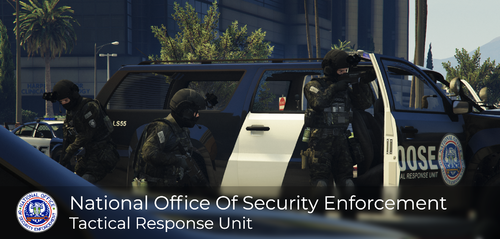 What cars did you use in your previews?
 -
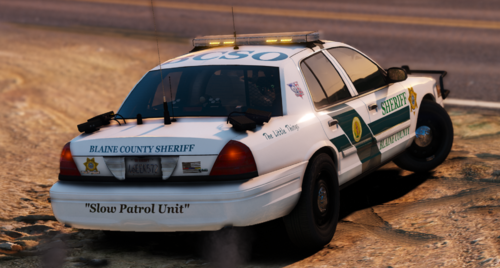 I'll make sure to check it out!
 -
Looks good!
.thumb.gif.4b4326f679dbbf790e4f399e9f83a755.gif)