C38X
Members
-
Joined
-
Last visited
Everything posted by C38X
-
I tried to put my BETTER radiance and other increased environmental lighting thing back in but it broke again environmental has to be the problem because I already deleted the other file with the BETTER radiance in it... Does anyone know a good environmental pack that's compatible with what I have?
-
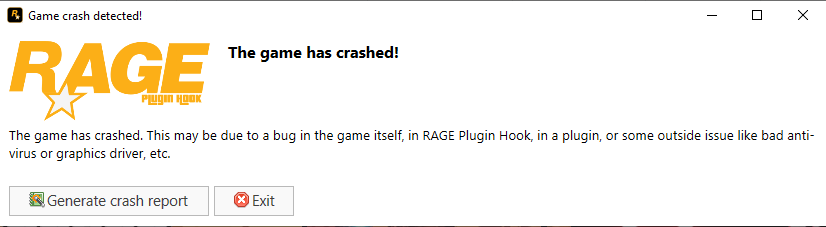
I followed Benzo Effects video on installing everything I installed but my game crashes when I load it with RPH (I loaded GTA without RPH and it worked smoothly) Mods I downloaded: Simple trainer (currently works when launching the game without RPH), NYSP main fleet (currently works when launching the game without RPH), Script Hook V and Script HookV.Net, Emergency Lighting System 1.05, BETTER radiance V3 1.0.0, [ELS] Increased Environmental Lighting 1.1.3, OpenIV. Is there any known issue with any of attached mods? I played it some earlier for the first time but wanted to add some mods, so that can't be the issue. It works now!! I didn't do anything though
-
I followed the guide for downloading LSPDFR as best I could, but whenever my game starts loading (with "loading story mode with rage..." text in the bottom right corner it crashes... when I try to start it without the rage plugin it works. Do I need to restart and redownload everything? For reference, I don't have any mods downloaded and I have the game downloaded on steam, if that helps at all I just messed with my antivirus and whitelisted my entire GTA folder, and it still crashed. .