Smokingriver
Members
-
Joined
-
Last visited
Everything posted by Smokingriver
-
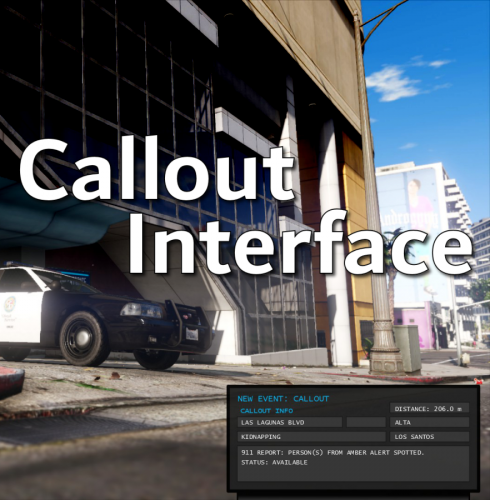 For some Reason ALPR i am not able to enable when i press the set key in the ini, left as default
- 451 comments
- 50 reviews
-
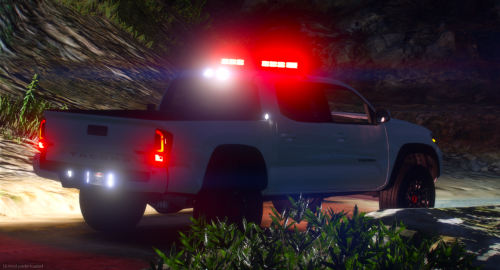 i tried to convert this model as an add on car and everything works only thing is that it spawns like a normal car instead of a police car i cant turn on the police lights or siren and i have changed everything i can think of but no luck
 -
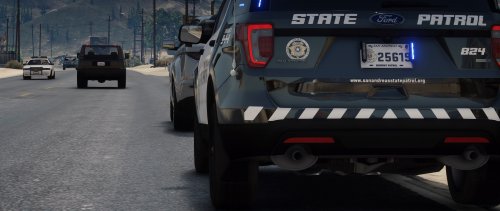 darn, thank you though. These have been some of the best models i have gotten to use either way love your work
- 159 comments
- 10 reviews
-
Hell yes! Also question for you boss man, I used some of the vehicles in this pack as replacements and I get some of the els lights that wont change/light. The little corona light flashes but the actual detail of the light doesnt show. i used the els files for each and the vehicle.meta for each but not sure what else i need. its for those lights under the side view mirrors and the back light bar (code 1 works but not 2 or 3) do i need the carcol.meta for them? if so where do i put that file for the replace cars?
- 159 comments
- 10 reviews
-
this pack kicks ass all i would want is a dodge Durango that has the same style and the others in this pack and id be set
- 159 comments
- 10 reviews
-
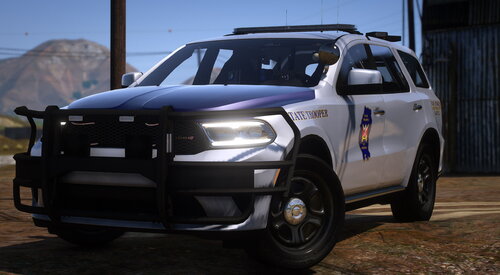 this pack is amazing, i only have one issue the license plant scanner doesn't spawn with the vehicles only the Durango spawns with them/ when i open the yft file in openiv i see them on the top but just not in game. any ideas?
- 72 comments
- 11 reviews
-
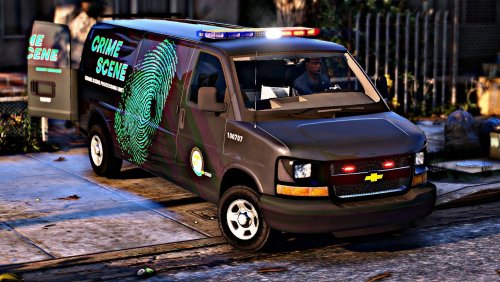 How do I put the missing texture in?
 -
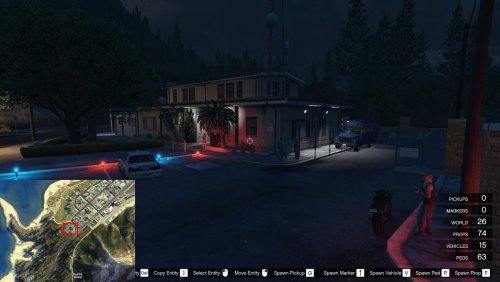 where do i put this?
 -