wbhumphries
Members
-
Joined
-
Last visited
Everything posted by wbhumphries
-
Brand new to LSPDFR and modding GTA V. Been spending a lot of time at YouTube University watching the most current videos on installing LSPDFR, plugins, etc. I am utilizing a Microsoft XBox/PC controller (360 era controller). After my last set of issues, I've made certain that I have a clean install of GTA V from steam. I have installed LSPDFR/RPH, Open IV, and scripthook v. My last install, almost every single thing I installed, I had a set of issues with each. I've noticed that the controller commands do not work as they should, so I'm not against utilizing both controller and keyboard. Here is a short laundry list of issues, and before I go any further, I apologize for such a long post, but just getting frustrated and I want to get it right so I can enjoy this amazing add-on. Unable to change radio stations or cut off radio with controller or mouse wheel EUP/EUP Menu not showing up when depressing F11 ELS not activating siren in Code 3 statue. Have to press and hold the 'B' button to activate siren Most vehicles, even after following installations to a 'T', vehicles do not spawn (what is best trainer for this?). Guys, thank you in advance for any assistance you may be able to provide!
-
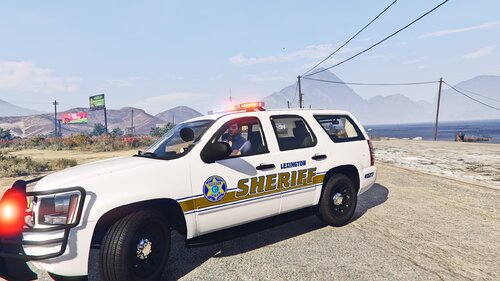 I'll have to check, but I think the deputy that drives that Tahoe lives in my neighborhood!