JohnsonPhilliesheat6
Members
-
Joined
-
Last visited
Everything posted by JohnsonPhilliesheat6
-
Evesham Township Police Department 2010 Dodge Charger Texture Texture by AST Commissioner Johnson Model in screenshots Credits to ReadTheRules1 and EVI Model can be found here: http://bit.ly/10B0fTu Real Pictures
- 1 comment
- 4 reviews
-
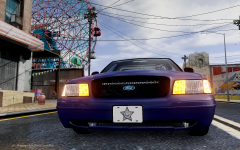 Who's model is this?
 -
-
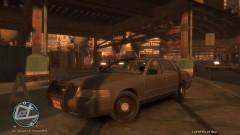 Where is this car from? Looks very nice!
 -
-
I have no idea, but I don't think that will help him much. There are quite a few .dat files...
-
You want to edit them like this right? http://www.youtube.com/watch?v=JfpDNov4kO8 Assuming you use SparkIV, you can find the Alderney station by going to pc>data>maps>jersey>nj_01.img Then Edit that and simply Filter Search "Police". You can edit the 2 .wdr files that show up and just about everything at that station will be inside of them.
-
This is all I can remember from my Sesame Street days:
-
Yeah I agree. Computer seems nice so I'd go with an ENB. Best way to know though is to test both and see which you like.
-
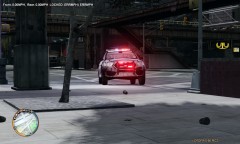 Looks very nice! Who's model is it?
 -
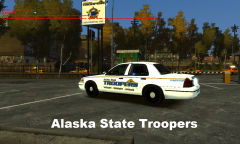 Here's one: http://wchinews.com/wp-content/uploads/2012/12/ast236.jpg
 -
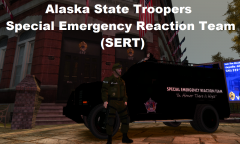 They do now :)
 -
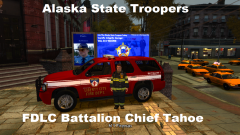 Thanks. All the Fire & EMS skins are based off of the Anchorage Fire Department.
 -
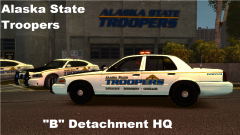 Thank you very much!
 -
 Yeah, thanks for the reminder. I usually add it at the end.
 -
Thanks! I'm trying my best to make it as accurate as possible.
-
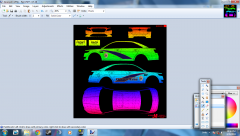
Pictures of my Car Skins in progress.
-
From the album: Car Skinning
Pictures of my AST Taurus in Progress. Should be released in the next AST Pack! -
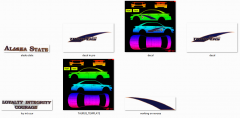
From the album: Car Skinning
Pictures of my AST Taurus in Progress. Should be released in the next AST Pack! -
-
Showcase of Alaska State Troopers Clan cars.
-
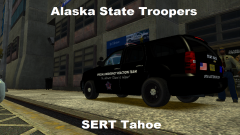
From the album: Alaska State Troopers - Car Showcase
Alaska State Troopers Special Emergency Reaction Team (SERT) Tahoe -
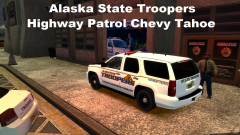
From the album: Alaska State Troopers - Car Showcase
Alaska State Troopers Marked Highway Patrol Chevy Tahoe -
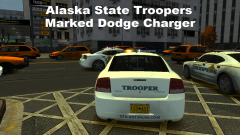
From the album: Alaska State Troopers - Car Showcase
Alaska State Troopers Marked Dodge Charger -
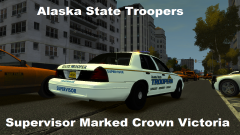
From the album: Alaska State Troopers - Car Showcase
Alaska State Troopers Marked Supervisor Crown Victoria