Handsup!
Members
-
Joined
-
Last visited
Files posted by Handsup!
-
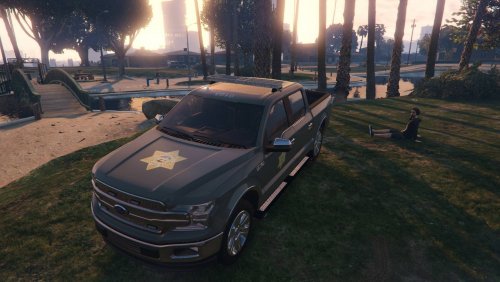
Based off the CAL FIRE Schedule B vehicles used for wildland fires and conservation. Pretty accurate recreation with a bit of creative disparancies.
This is a texture for this vehicle:
Simply replace the similarly named png in the .ytd with mine. Delete other liveries if you wish.
SAN FIRE graphic credit goes to @Bojack6666!
- 79 Downloads
- 1 Comments
Submitted -
Requires original file here:
Replace pranger.ytd in your latest patchday with the ytd in the file. Custom-built lore-friendly badge used.
- 135 Downloads
- 1 Comments
Submitted -
Sounds to replace the regular Pistol slot. Amplified so will not have perfect resilient sound like most files, but has the volume you'd expect from firing a handgun! Credits available in file, along with installation instructions
- 552 Downloads
- 1 Comments
Submitted -
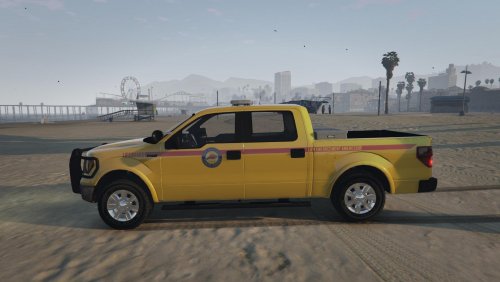
ORIGINAL VEHICLE MODEL AVAILABLE HERE:
Lore-friendly lifeguard vehicle; designed with RDE/EUP in mind, the truck features the San Andreas Parks logo present on EUP lifeguard uniforms. Useful for both law enforcement and rescue lifeguards (both feature in EUP 7.5) Replace template.dds in pranger.ytd with the file downloaded.
- 197 Downloads
- 2 Comments
Submitted