


MythicalMonkey
Members
-
Joined
-
Last visited
Everything posted by MythicalMonkey
-
Not sure I understand the question. Do you want the new vehicle to replace the interceptor and bison?
-
Have you updated update.rpf using OpenIV?
-
-
The problem is that too many people want a personal assistant to help with their problems. I've only been modding and using LSPDFR for a year and find that 99% of problems are known issues that have been experienced by others and that they have already been solved on various forums. There is always a 1% chance that a problem is unique or unanswered, especially with plugins always changing and of course the never ending updates to GTA.
-
-
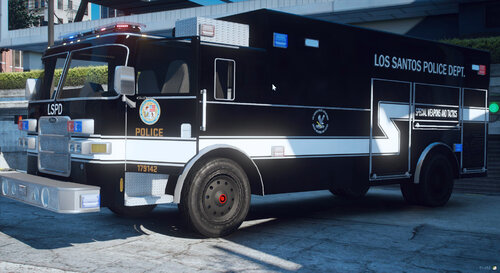 The various extras for the light bar is a great idea but sometimes AI units respond without any extra and thus no lights. I've added the following to the CVPI, FPIU and Charger's vehicles.meta entries: <requiredExtras>EXTRA_8</requiredExtras>
- 36 comments
- 4 reviews
-
-

- 1
-
-
Best non-ELS LAPD-based pack available, IMO. The attention to detail is incredible and the cars are stunning. Really enjoy using this alongside your CHP pack - just need a Riverside County Sheriff based BCSO pack to complete the collection 😉
- 36 comments
- 4 reviews
-
-
- 1
-
-
Still no progress on the sand storm/dust effect. After some digging, I have found desert_ground_emitter.xml, desert_emitter_ground_heavy.xml, desert_render_ground.xml and desert_render_ground_heavy.xml in update/update.rpf/common/data/levels/gta5/weather. It looks like these files control the effect. Does anyone have any knowledge about these files? Is it safe to simply delete them?
-
Thanks - thought it was a bug. Any idea where the smoke/sand comes from?
-
Any ideas?
-
Here's an image of the sand/dust effect: https://imgur.com/wJm5Jzd
-
Do you have GTA V installed twice?
-
I've been using NVR + VisualV for a few months now and really enjoy it. However, when my game starts the weather seems to follow the same sequence. Generally it will be raining, then clear and then sunny. How can I randomise the weather sequence? Additionally, about ten minutes after the game has loaded the weather transitions to a sand/dust storm in both Los Santos and Blaine County. It's incredibly annoying as visibility is reduced and sometimes it will have a big impact on performance. How can I disable this? I managed to disable it but it has returned since re-installing the mods after the recent update. Below is part of my timecyclemods.ini in my GTA V directory: [KEYS] ToggleKey= ReloadKey= [TIMECYCLEMODS] Enable=1 ModifierName=Global ModifierStrength=1.0 TransitionTime=0.01 [TIMECYCLE] Enable=1 Weather1=extrasunny Weather2=rain Weather3=thunder Weather4=overcast Weather5=clouds Weather6=extrasunny Weather7=clear Weather8=foggy Transition=0.001
-
Thanks for the pin!
-
GTA V Update Guide How to Restore Mods After Title Update Updated 19/06/2023 Being relatively new to GTA modding, when that dreaded GTA V update arrived I always found it incredibly frustrating and complicated trying to recover my mods to their pre-update state. I was surprised to find very few tutorials online so decided to create one myself and hope that others find it useful. I now use it as a checklist to make updates as smooth as possible and have my game up and running again in no time. I am by no means a modding expert - I have merely created this guide based on my own experience to make the process as simple as possible and to share with the LSPDFR community. This guide assumes that you have already installed a legal copy of Grand Theft Auto V with LSPDFR and RAGEPluginHook installed. If not, this is not an install tutorial and you can find those elsewhere on the forums. Ideally you will have already used OpenIV to install various mods and have a basic understanding of how to use it. Most importantly, you should already be using a mods folder. For Steam users, I recommend turning off automatic updates. This can be done by right-clicking on Grand Theft Auto V in the Library section and clicking Properties. On the Updates tab, select ‘Only update this game when I launch it’ under Automatic Updates. Only RAGEPluginHook is required for LSPDFR to work however many mods will rely on Script Hook V. It will generally take a few days before an update is available. If you do not wish to wait for Script Hook V to be updated, you can use ASI Support which can be found here. Please remember that these authors provide these files free of charge and are not obligated to update them. DISCLAIMER I will not be held responsible for any loss of data associated with using this guide Step 1 - Backup Modding comes with the risk of corrupt game files which may not be recoverable, so please back up your files. You can do this by making a copy of your entire GTA V folder, but make sure to name it something other than 'Grand Theft Auto V'. At the very least, you should backup your GTA5.exe. If you wish to play using an older version of GTA V, you will need a separate clean install. If there is an LSPDFR update, back up your 'keys.ini' and 'lspdfr.ini' files. Failure to do so will result in losing your LSPDFR keys and settings, as the installation will overwrite these files. Now is also a good time to backup files that will be overwritten by the update, such as your 'dlclist.xml' file. You can find this in mods/update/update.rpf/common/data. You should also update other files that you may have modified, such as 'visualsettings.dat'. If you are unsure which files have changed, check your downloaded mods and check the install guide to see which files have been edited and where they are located. It's a good idea to save these files to your PC after you change them so that they are already backed up for the next update. The only mods that will be overwritten as a result of the update should be the ones located in mods/update/update.rpf. These will include graphics, weather and handling mods. Mods such as addon vehicles, sounds, uniform packs and plugins will not be affected as they are not located in update.rpf. Step 2 – Update GTA V For Steam users, the correct way to update the game is via Steam. Open Steam and select Library. Right-click on Grand Theft Auto V and select Properties. Click on Local Files and click ‘Verify integrity of game files...’. For non-Steam users, I believe the update happens when you launch the game, therefore if you already know there is an update available, do not launch the game. If you are unsure if your game has been updated or not, navigate to your Grand Theft Auto V folder, right-click on GTA5.exe and select Properties. Under the Details tab, you should see ‘File version’. As of 15 February 2021, this should be 1.0.2215.0. This may be referred to simply as 2215. Step 3 – Update LSPDFR Some GTA V updates require LSPDFR to be updated in order to function correctly, however this isn’t always the case. You can check the latest version here: If an update does exist, download and install it as per the documentation. Once installed, you can restore your 'keys.ini' and 'lspdfr.ini' that you backed up earlier. Step 4 – Update RAGEPluginHook and Script Hook V LSPDFR updates will usually come with the latest version of RAGEPluginHook. The verison on the RPH is outdated and is not to be used. Script Hook V will often take time to be updated after a GTA V update so check that an update has been released before downloading, as old versions will be incompatible. http://www.dev-c.com/gtav/scripthookv/ Step 5 – Transfer new update.rpf using OpenIV This step has not been required for recent updates but it is a good idea to check that it has worked correctly. To do so, launch OpenIV and open your mods folder. If there is NOT a green message at the top prompting you to copy the new update.rpf to your mods folder, skip to Step 6. If the green message is displayed, click the button to transfer the new update.rpf. Note that this cannot be undone, so make sure that any changes you have made within mods/update/update.rpf have been backed up, particularly your 'visualsettings.dat' if you have not done so already. Step 6 – Update gameconfig.xml and dlclist.xml A modified 'gameconfig.xml' is required for addon vehicles after every update. Download it and copy it into mods/update/update.rpf/common/data. https://www.gta5-mods.com/misc/gta-5-gameconfig-300-cars Your 'dlclist.xml' may or may not have been changed during the update. To check, navigate to it in mods/update/update.rpf/common/data and scroll to the bottom. If it has remained unchanged by the update, it will still contain the lines for your addon DLC packs, for example: <item>dlcpacks:\lspdpack\</item> <item>dlcpacks:\sheriffpack\</item> If they are missing, the update has changed the file and you will need to copy and paste the missing lines from your 'dlclist.xml' backup file. Step 7 – Re-install graphics mods This step is for those who use graphics mods, such as NaturalVision. If you are not using these mods or similar mods, skip to Step 8. Install your graphics mods as though you are installing them for the first time using the relevant documentation. Step 8 – Update mods You’ll now need to re-install any other mods and files that were located in mods/update/update.rpf. As mentioned previously, there is no need to re-install vehicles and liveries, assuming that they were installed in the correct place. Recently updated mods can be found on the Downloads section of the LSPDFR website: https://www.lcpdfr.com/downloads/gta5mods/scripts/?sortby=file_updated&sortdirection=desc Step 9 – Launch GTA V Launch your game via RAGEPluginHook and unblock the updated files if prompted. Make sure your game runs as expected and that your mods load successfully. If your game crashes or something is not right, please repeat the steps to ensure that everything was followed correctly. That's it! If anyone has any comments or suggestions, please leave them below.
-
 Overall, the best fire callouts pack available. The variety of calls and locations is excellent and the scenarios are realistic. However, I've recently uninstalled the pack as the inability to change the key to perform CPR is a real problem. Those using Stop The Ped will find it challenging around casualties as pressing E (or D pad right) initiates the CPR animation which cannot be aborted. My only other issue with the pack is that when the call is ended, all the vehicles and peds disappear. I understand that this is necessary to remove the smoke once the fire is extinguished but for the car crash and aircraft crash callouts it's not very realistic.
- 365 comments
- 19 reviews


