


.png.8a879beb4567f73390a23819f33b0dc5.png)
TypicalMailers
Members
-
Joined
-
Last visited
Everything posted by TypicalMailers
-
👍
-
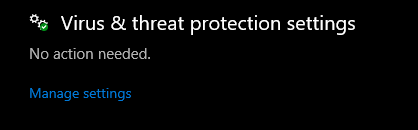
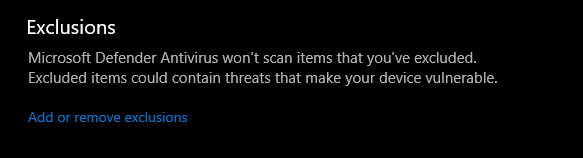
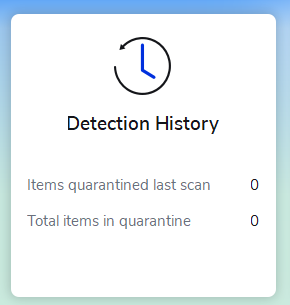
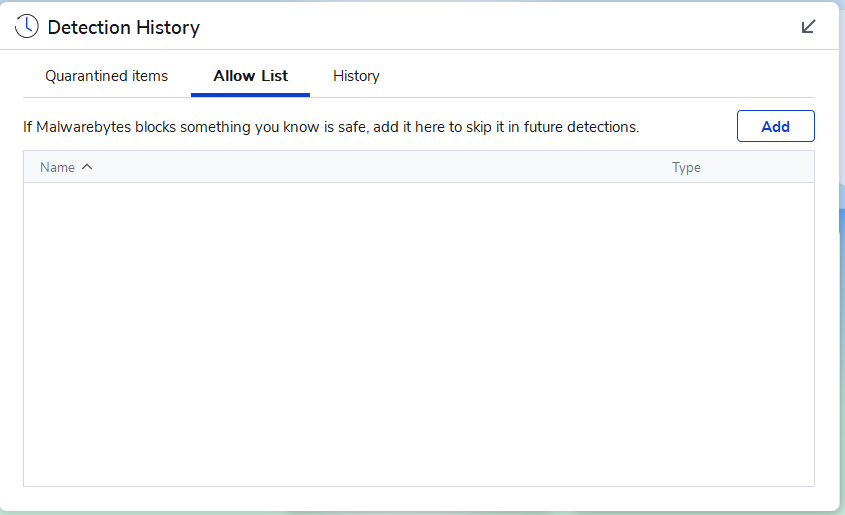
Firstly search up "Windows Security" by pressing Win Key and simply typing it. Then you simplyexempt a folder by going into Windows Defender Then scroll down after clicking 'Manage Settings' And it's self explanatory from there, if you're using MalwareBytes I'll simply touch you up on my next reply On malwarebytes it's real simple, simply open it up, you should see this tab Press onto it and it expands. From there you should be greeted with this screen From there you simply click add and you choose the folder/file/website etc to exempt.
-
I will, I'll let you know how it'll do, I'll have to reinstall the files though, just removed them as a precaution incase i corrupt any game files 😬
-
I presume you mean this? RagePluginHook.log
-
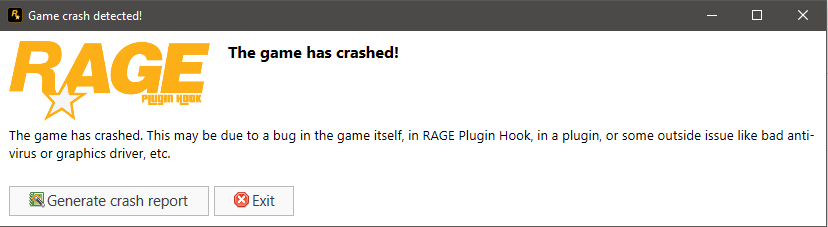
Hello, I've recently been getting problems with my GTA V during loading, by this I mean the game crashes while loading in with RPH. I have read over different topics regarding this, I checked my Anti-Virus & Exception-ed the GTAV folder. My game's version is V2245 and it is a Retail version (Epic Games) If anyone can help out that will be perfect. 🙂 Adding onto this, I have never gotten this problem with GTA & RPH* I also updated RPH to the recent version of the game.
.thumb.png.6212a0c3d33c2d1d16896b2e569a69d2.png)
