




Icebear445
Members
-
Joined
-
Last visited
Everything posted by Icebear445
-
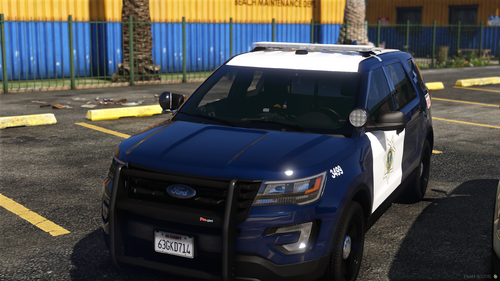 I know you diad you will add 2016 k9 and 2020 explorer but aan you please add other types of vehicles overtime such as the charger or cvpi? Also if you change it to els in the future, will it just be els or will there still be a non els version?
 -
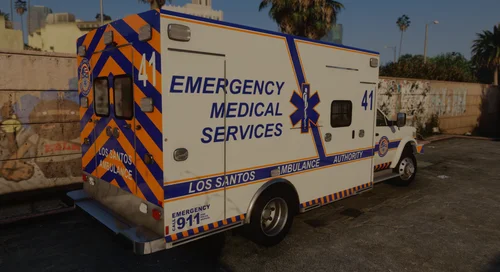 What graphics do you use?
 -
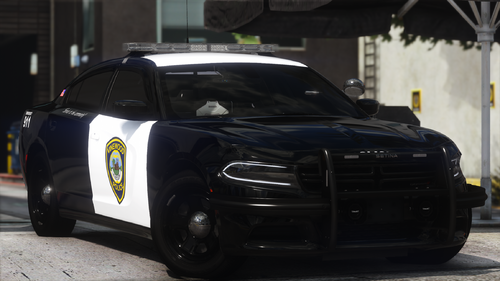 Can you please make a non els or dls version of this please?
 -
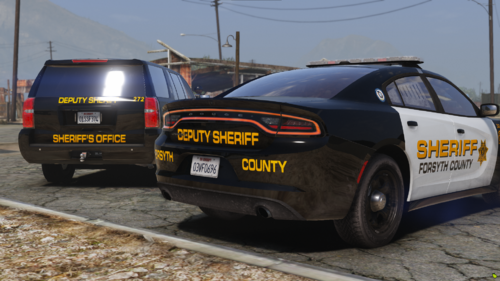 Hi, what graphics mod do you use?
 -
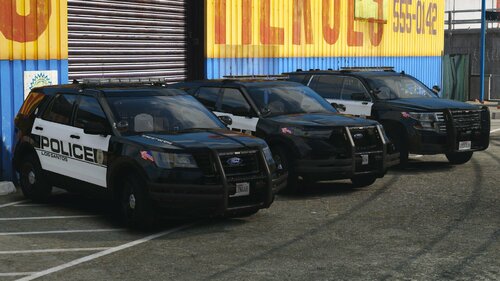 Can you make a non els version please 🙏?
 -
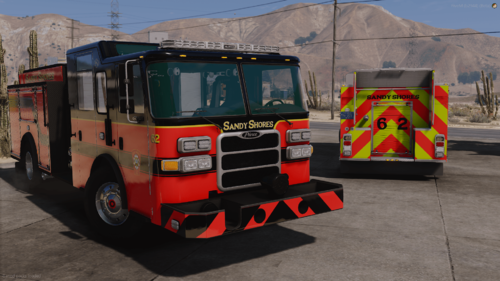 Can you please make a safd version of this livery as well instead of just a ssfd?
 -
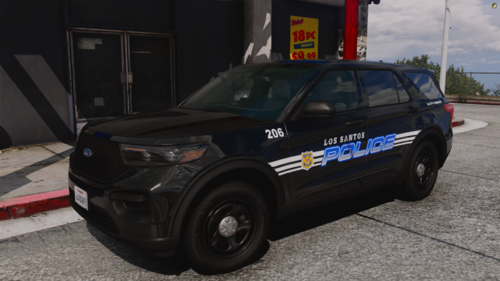 Can I get a link to the enb, please? Thanks btw for the response
 -
Hi, what graphics mod do you use?
-
-
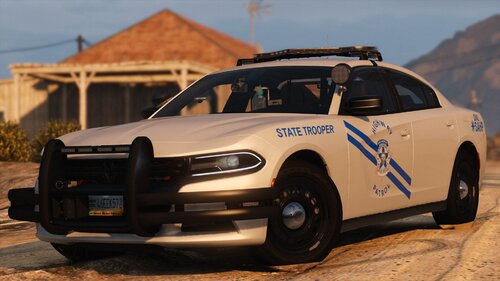 Hi, what graphics mod are you using in these pictures, especially the top one?
- 179 comments
- 19 reviews
-
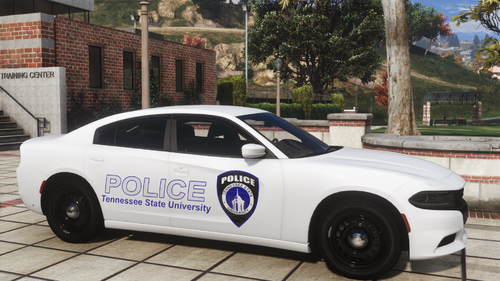 Hi, what graphics mod do you use?
 -
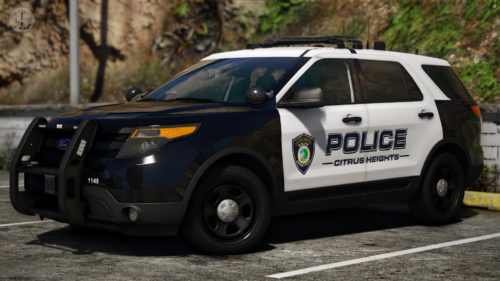 Can you make a f250 livery for this pack please?
 -
Hi, what graphics mod do you use?
-
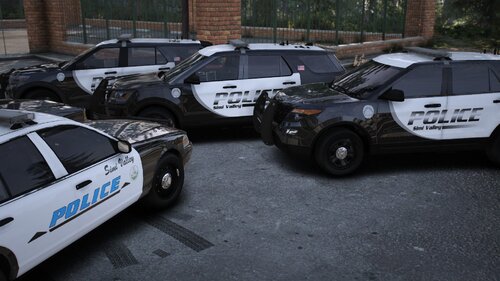 My bad lol
 -
There isn't a 2020 explorer in that pack. I just looked at that pack
-
Where can I find that 2020 explorer used in the pictures?
-
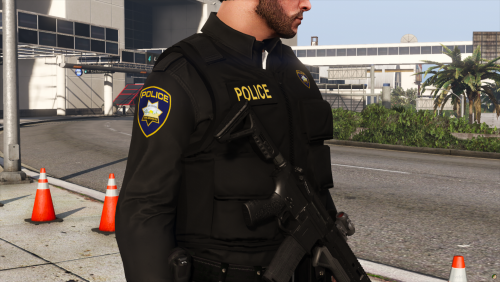 Honestly, I agree, it's just that I couldn't find another high quality california eup pack
 -
How do I do it though?
-
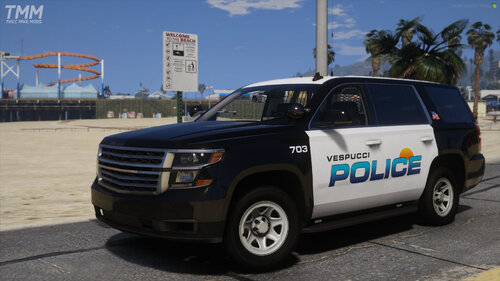 Is it just visualv? Because I use vishalv and I can't get my game to look as good as this.
 -
Hi, what graphics mod do you use?
-
How do I install this for Lspdfr?
-
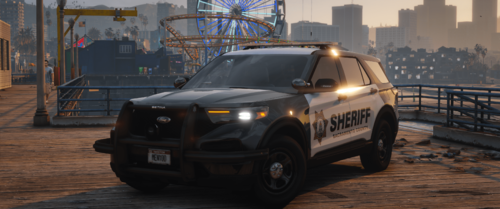 Could you make this dls compatible please?
 -
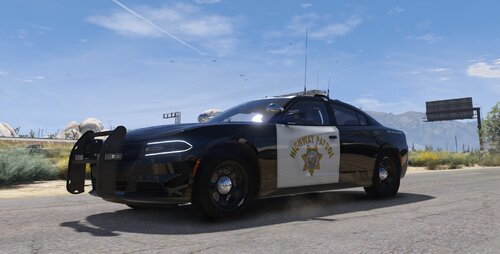 How do I do that? I knew how to do it for els but not for dls.
 -
Hi, I've got everything working except the siren. When I go in game and spawn in the car and hit "j" and turn on the siren, it plays a different one than the chp one in the demo video. I've even installed an actuall chp siren and all my other cars use it. If anything, the wail kinda sounds like chp but yelp sounds more like a federal signal touchmaster delta. Can you help please?
-
.thumb.jpg.d25230e6ec63d060d54c6623b25111d0.jpg) What's your graphics mod and where can I get a link to the vehicles please? Thank you for your awesome work.
What's your graphics mod and where can I get a link to the vehicles please? Thank you for your awesome work.

.thumb.jpg.d25230e6ec63d060d54c6623b25111d0.jpg)
