
Sugary
Members
-
Joined
-
Last visited
Everything posted by Sugary
-
-
 @RYM1BRIs it possible for u to fix the visor lights and laptop so dirt doesn't affect them? I would love to not have to clean the car every time it gets dirty! Also wondering if u could put a radar in the car?
 -
 Superb!
 -
Oh my!
-
 Yep that was the issue, it works now thx.
 -
Same for me, I told him about it on GTA5mods. But he said nothing is wrong with it so idk.
-
-
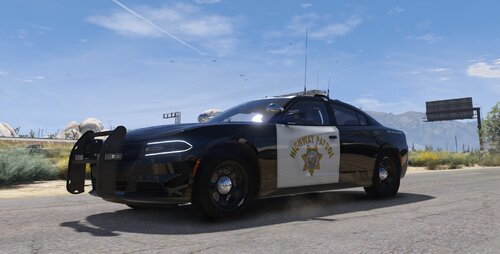 Lol, this was from june 12..., I already had all that stuff. It was the vehicle meta handling id that needed to be changed to the handling.meta.
 -
I cant get the car to work in lspdfr for some reason? It crashes my game unlike other fivem cars I add.
-
-
 OK, I will join
 -
Are u going to update this for the new pack?
-
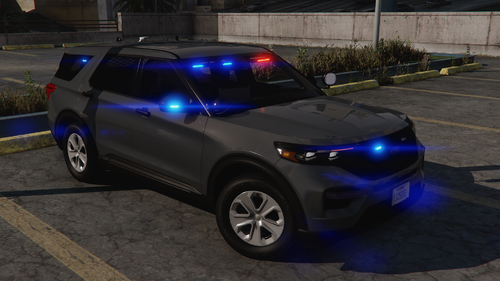
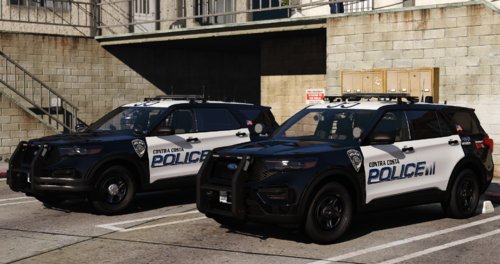 @Nathan's 2014 charger pic One more pic for the 2020 FPIU
 -
Love this pack, the interiors and the environmental lighting is awesome! Best pack on lspdfr in my opinion. Cant wait for the update! (Blaine County, CA)
-
These are so fire, what's your next project is u don't mind me asking?
-
-
I like it, I wish u would make more dls configs with steady burns!
-
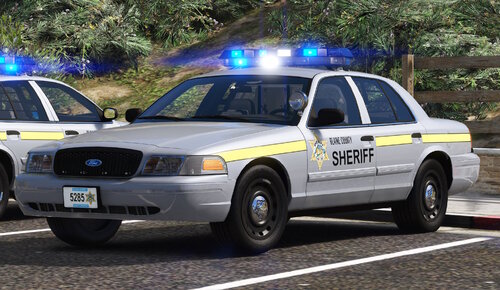 Why? U know LASD has to have a steady burn red light. I go for realism lol
 -
-
I don't believe so, even tho it sucks just having a pistol to shoot in a armed pursuit.
-
-
-
-
-
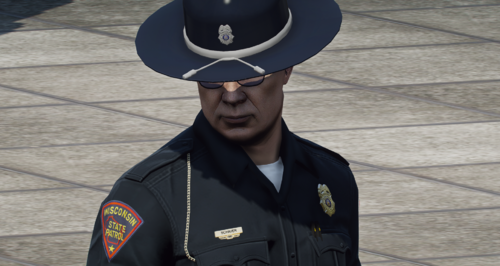 Still no good WSP vehicles in sight... lol