incredibleoldman
Members
-
Joined
-
Last visited
Everything posted by incredibleoldman
-
I'm standing in front of the Human Labs building because of a robbery and the gates aren't going up. What can I do.
-
I have set via the LSPDFR Console, which loads all plugins and further extends the folder structure from /Plugins to /Plugins/LSPDFR and the extensions there in, now it works. That's when you don't see the forest for the trees. Thanks for the support.
-
To understand. I reinstalled GTA V and manually pushed LSPD First Response 0.4.8 (Build 7659) into the main GTAV directory. I pushed Ultimate Backup into the plugin folder and started the game via RPH. It loads LSPDFR, but the Ultimate Backup Plugin does not. RAGENativeUI.dll is also in the main GTAV directory. Otherwise I have not installed anything.
-
Where can i find the RPH log?
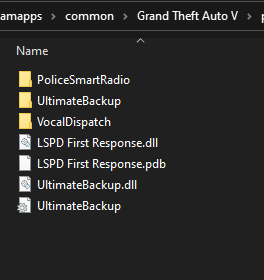 I already have, thank you. Now the problem is that plugin doesn't run at all even when I use it via F4 LoadPlugin ... TryThe Ultimate Back extension from the side shows me the following message when I start Rage. Could not hook game process. Insufficient permissions or bad anti-virus. Please try again. If the problem persists, please restart your computer.Hello everyone, I am looking for a backup plug-in for removal (police), tow trucks and a plug-in for partners, K9 units, etc. I only have LSPDFR for a short time, thank you for your help.