


MatteoVPursuit
Members
-
Joined
-
Last visited
Everything posted by MatteoVPursuit
-
No, you say that could be the problem?
-
Yes, I also tried to rename the Gta 5 folder, but it doesn't work.
-
@evandatpotato man 😞 ? Are u there?
-
are you there? I will wait you 😞
-
https://imgur.com/a/myaxeSj
-
does not let me attach the video okay
-
Now I'm sending you the video. Are you online?
-
I live in Italy and now it’s 11:28 pm so I should go to sleep...Can I send you the video tomorrow?
-
There’s no log generated, is there any way to generate it?
-
Unfortunately yes. I hope I can solve this problem with you. I love lspdfr.I just added the exception and I followed your instructions but unfortunately he keeps telling me "slow system or insufficient permissions"No, I bought the game on instant gaming and I keep it for rockstar gamesOf courseHow do I add the Gta5 folder as an exception to windows defender?Hello, I tried to download lspdfr but apparently the game closes for an abnormal reason and it tells me "slow system or insufficient permissions". Would you be able to help me? Hello, I tried to download lspdfr but apparently the game closes for an abnormal reason and it tells me "slow system or insufficient permissions". Would you be able to help me?of course
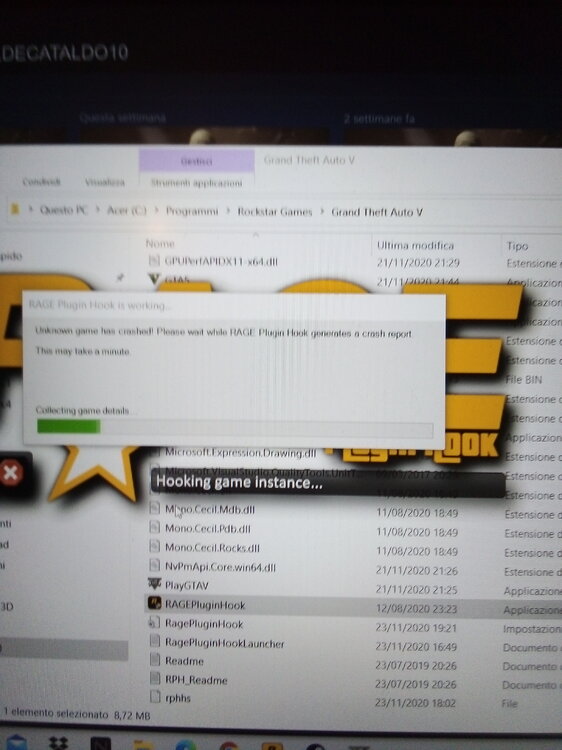 does not work. Listen, could you download anydesk? It is a remote control application between PCs so you can try to fix it . PleaseTo me it goes up to DirectX 11Should I go to game settings and select DirectX 12?I installed it half an hour ago and uninstalled it.I was spending time with scripthook before, but I uninstalled it for safety, did I do it right?I'm sorry, but despite following all the instructions, it doesn't work. Could you look for some other alternative?I'll let you know soon


