


Cryomaniac1
Members
-
Joined
-
Last visited
Everything posted by Cryomaniac1
-
ok well one more issue, stop the ped and the traffic stop are on the same button. Can i disable traffic stop menu or should i just clear the binding in the ini?
-
ok, i moved scripthook into the same folder as my plugins and thats done it. Thanks so much for your help!
-
yeah when i spawn my character is sometimes on duty in his car and sometimes at his apartment
-
i do have scripthook v.

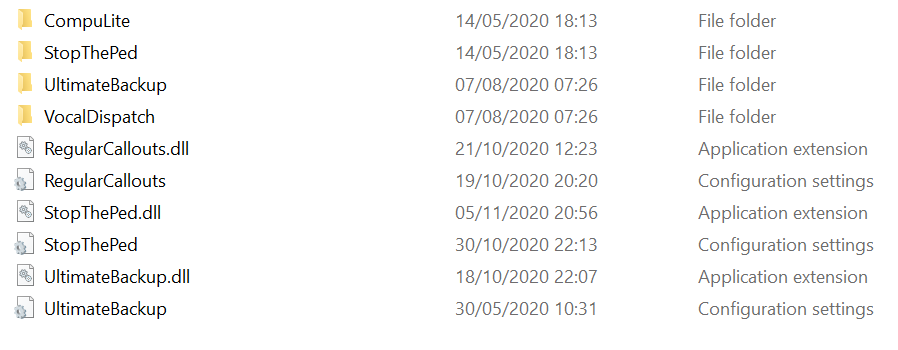
-
unfortunately, they still dont load
-
ill give that a go
-
indeed It loads 2 of them but not the rest
-
The weird thing is it loads the EUP menu. there all in the same folder and only 2 get loaded
-
still hasnt worked, pepehands
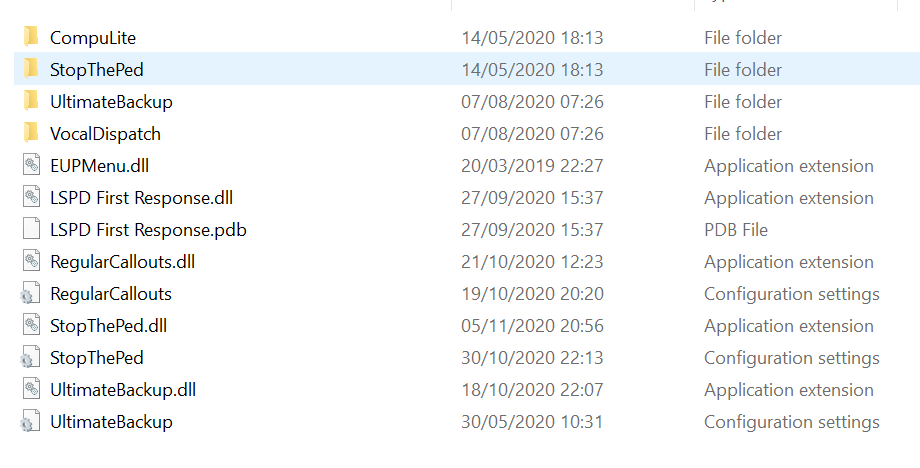
-
ive turned it on and if it works youre a legend. ill report back
-
sorry for slow reply, Where can i find this setting?
-
RagePluginHook.log
-
the only ones i see are the two default callouts. none of my custom ones load
-
i do indeed
-
As per the instructions within the download it self, i take the contents of "plugins\LSPDFR" and place them in "GTAV\plugins\LSPDFR" and they dont work. i do have the RagenativeUI.dll installed too
-
Regular callouts, ultimate backup, stop the ped.
-
Ive followed every guide out there and they just dont work, I've placed them exactly where they should be and they dont work
-
No matter what i try i cant get any of the plugins to work. i can add vehicles, ELS, and other things fine, but not callout plugins


