
Cratos
Members
-
Joined
-
Last visited
Everything posted by Cratos
-
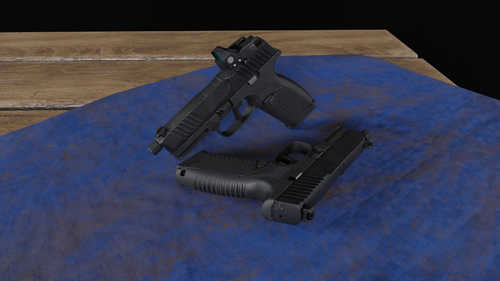 Is there any way the threaded barrel could be removed?
 -
Yeah I already did that, went over 2000 different animations, no luck.
-
Minute 3:46
-
Does anyone know this animation name?

-
-
-
-
-
 yep, i think im starting to become addicted to your content. Beautiful!
 -
 That is just sick
 -
 Love the els on this one
 -
 Lovely
 -
 Nice graphics mod you got! What is it?
 -
.png.35fd95fbbf33281a666bf43a8fcdd4eb.png) whats the car pack
whats the car pack -
.png.ff4aba6f5018fc13c541eaf0163a442a.png) that poor cvpi, hope you took him down!
that poor cvpi, hope you took him down! -
-
.thumb.png.fc8bcf4c49efb0f46604702b368d2431.png) yessss, been trying to do this by myself for a long time but just found yours. Great job!
yessss, been trying to do this by myself for a long time but just found yours. Great job! -
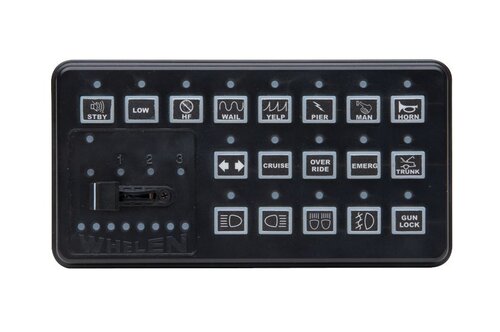 oh yeah sounds just as the real one, good job pal
 -
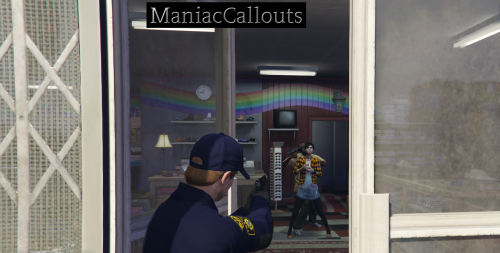 will download and try today, as far as i have seen it looks great!
 -
-
-
-
-
 woah great job on these screenshots!
 -
-
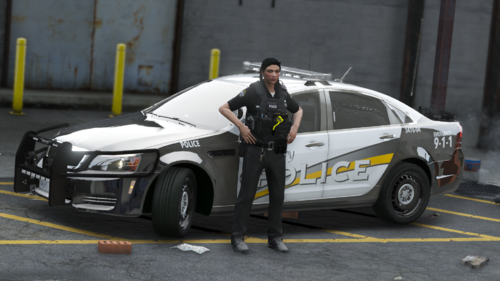 woah these look amazing!




.png.35fd95fbbf33281a666bf43a8fcdd4eb.png)
.png.ff4aba6f5018fc13c541eaf0163a442a.png)


.thumb.png.fc8bcf4c49efb0f46604702b368d2431.png)