



Till Voight
Members
-
Joined
-
Last visited
Everything posted by Till Voight
-
Sure, here it is. Thanks for your help. RagePluginHook.log
-
Well I did. And now, it just keeps crashing.
-
Yep, I'm using the latest ScriptHookV version. Also, I'm only running the LSPD:FR plugin. If I launch the game on Steam, without Rage Plugin Hook, everything works normal.
-
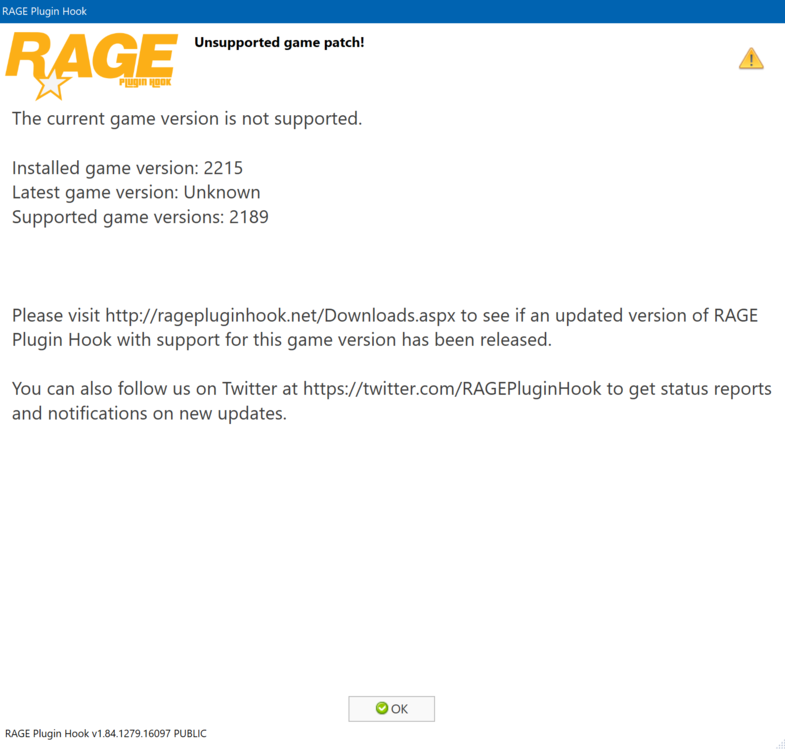
Hey, Today I wanted to try out LSPD:FR again. After I downloaded and started my game, Rage Plugin Hook told me, that the Rage Plugin Hook version is outdated. I've just downloaded the latest version from this website again. After that, I went on the Rage Plugin Hook website and downloaded the latest Rage Plugin Hook version there. Now, my game is just crashing, once I started it with Rage Plugin Hook. Kind regads
-
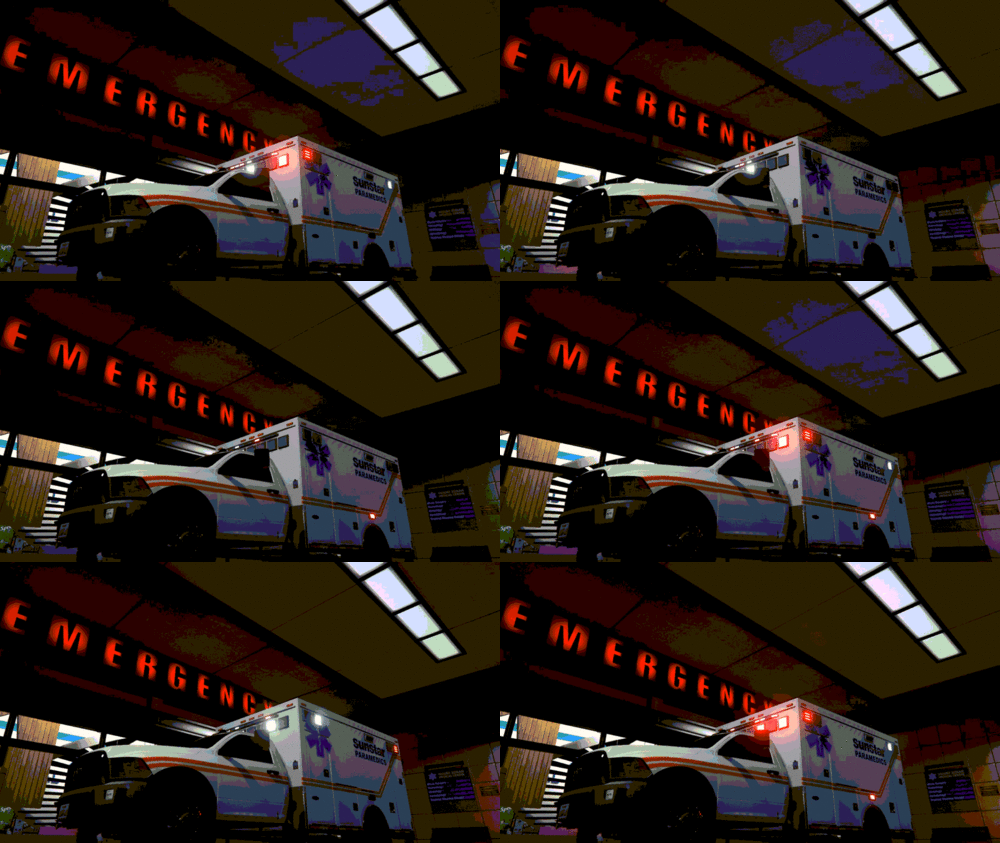 Is there any chance to get a NON-ELS version of it?
 -
Hey there! Is there a way that I can use different sirens on each vehicle? For example a "normal" siren for police2 and a rumbler siren for police3, so that I don't have the same siren on every vehicle. Notice: I still want to use the Emergence Lightning System (ELS) Thanks for your answers.
-
 The best CPD pack I've ever seen. Keep up the awesome work, sir. May you could also create a pack for the Chicago Fire Department.
- 125 comments
- 14 reviews
-
-

- 1
-
-

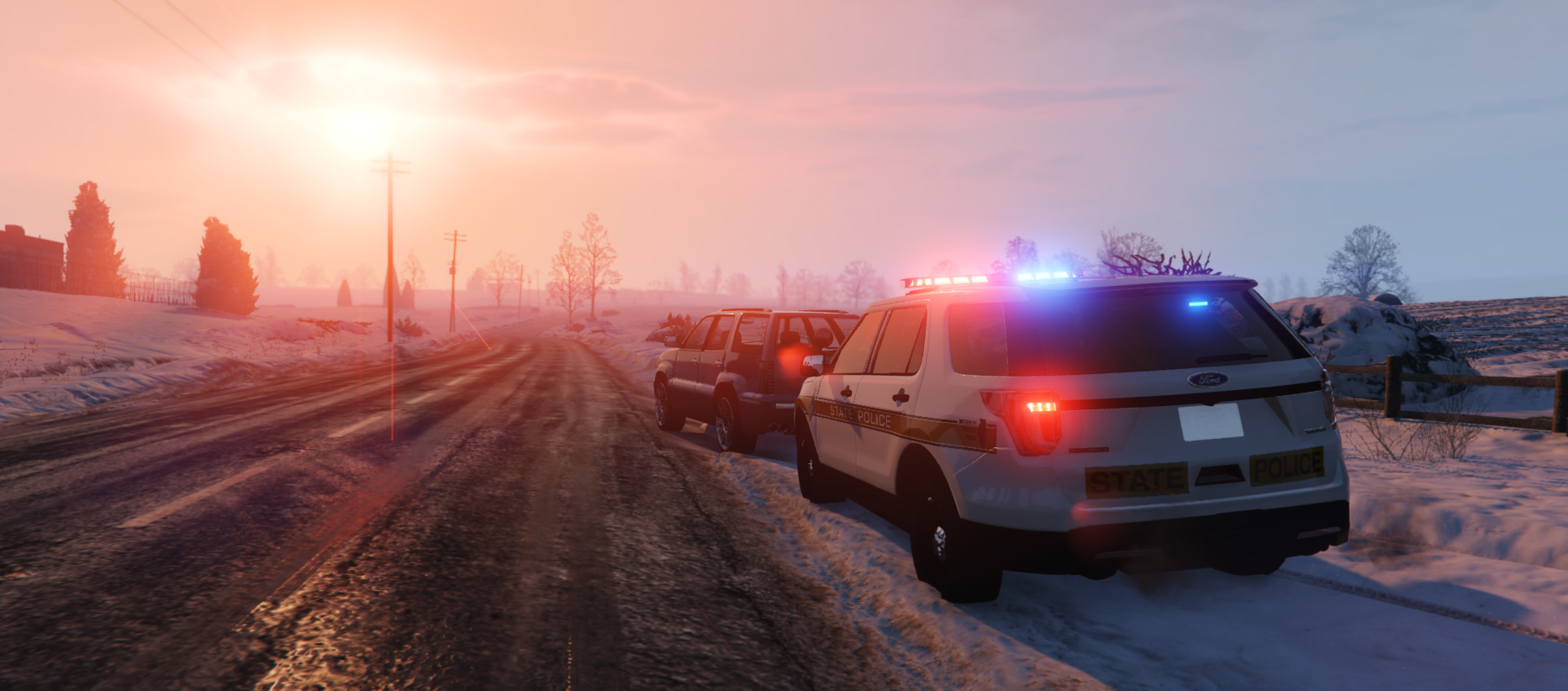
From the album: Just a normal day.
© Do not reupload this picture.
-
-

From the album: Just a normal day.
© Do not reupload this picture.


