


General Raul
Members
-
Joined
-
Last visited
Everything posted by General Raul
-
got the same problem. did u found any fix?
-
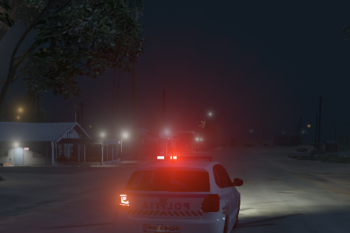
When i call for backup via backup menu or ultimate backup they come with no lights and sirens. I have ELS and its working for me but when i call backup its not working for npc.
-
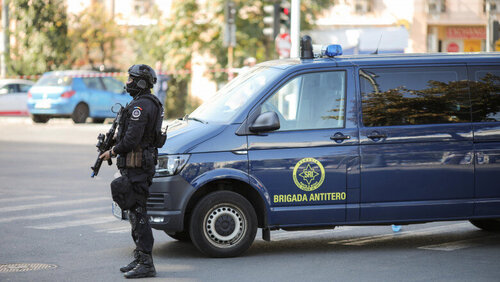 RO: ELS-ul se baga in folderul ELS - packdefault din folderul principal al jocului Ca sa instalati modul prima data stergeti fisierele policeold1 urmatoarele locatii: mods - update - x64 - dlcpacks - patchday3ng - levels - gta5 - vehicles.rpf mods - x64e.rpf - levels - gta5 - vehicles.rpf mods - update - x64 - dlcpacks - patchday11ng - levels - gta5 - vehicles.rpf Si dupa dati replace tot in aceste locatii cu masina din arhiva. EN: The ELS goes in ELS - packdefault To install the car first delete the policeold1 files from the next locations: mods - update - x64 - dlcpacks - patchday3ng - levels - gta5 - vehicles.rpf mods - x64e.rpf - levels - gta5 - vehicles.rpf mods - update - x64 - dlcpacks - patchday11ng - levels - gta5 - vehicles.rpf After you deleted them replace with the one in the ZIP CREDITS FOR THE VOLKSWAGEN T5 GOES TO: https://www.gta5-mods.com/vehicles/slovenian-police-volkswagen-transporter-replace-els-template-2-versions-rb _mods
 -
 Mersi mult!
 -
RO. Aveti toate instructiunile in fisierul README Instalati modelul original si dupa pe al meu EN.You have all the instructions in the readme.txt Install the original model then mine.

