


Speisekarte
Members
-
Joined
-
Last visited
Everything posted by Speisekarte
-
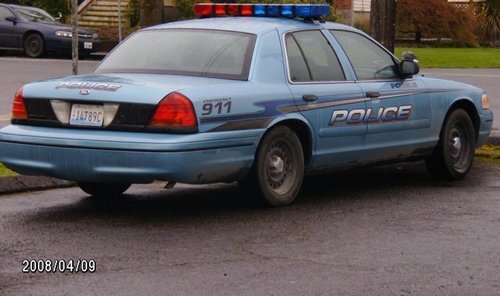
Hey guys, Anybody ever found a nice Crown Vic with a strobe lighter, instead of LED? See picture below for an example. I can't seem to find any... Thanks in advance! Rick
-
Thanks! Let me try that one!
-
Hey guys, I have the following question which I couldn't find on the board yet. I'm working on getting several mods running together besides LSPDFR. I've had it installed and working before, but now that I started with a clean GTA V folder and installed all again GTA V doesn't load the story mode anymore. These are the mods that I would like to run all together for the ultimate experience of LSPDFR: - Realism Dispatch Enhanced - Vanillaworks Extended - World of Variety - Make Visuals Great Again (including ENB and ReShade) - LS Traffic (not really necessary) *Please note that all the requirements are made for the mods* (ScripthookV, ScripthookVdotnet etc.) So the point is that I've had all those mods running together without any problems in single player. But some LSPDFR callout kept crashing with these mods. So I decided to reinstall GTA V and start with a clean mods folder. Now my question is, what is the BEST order to install these mods to get them working again? Does anybody know?? Thanks in advance! Rick
