Skip to content
View in the app

A better way to browse. Learn more.

LCPDFR.com

A full-screen app on your home screen with push notifications, badges and more.

To install this app on iOS and iPadOS
  1. Tap the Share icon in Safari
  2. Scroll the menu and tap Add to Home Screen.
  3. Tap Add in the top-right corner.
To install this app on Android
  1. Tap the 3-dot menu (⋮) in the top-right corner of the browser.
  2. Tap Add to Home screen or Install app.
  3. Confirm by tapping Install.
Due to overzealous filtering on Microsoft’s side, some emails to Outlook and Hotmail addresses may not be delivered. If you’re affected, please use a different email address or try again later.

Radius

Members
  • Joined

  • Last visited

Everything posted by Radius

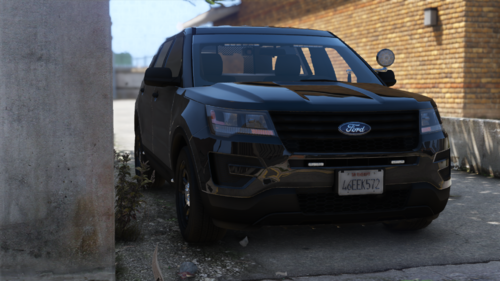
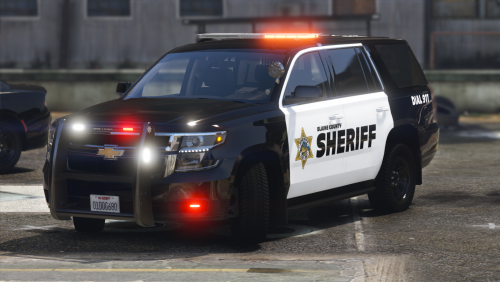
  1. Radius posted a gallery image in GTA V Galleries
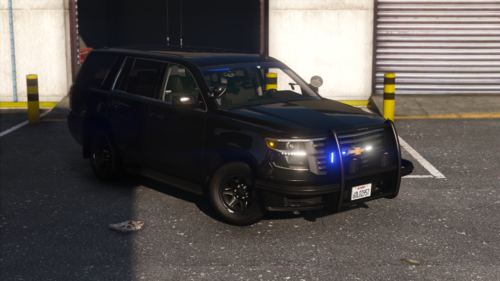
  2. Radius posted a gallery image in GTA V Galleries
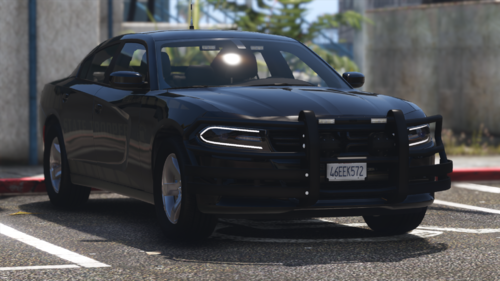
  3. Radius posted a gallery image in GTA V Galleries
  4. i was being lazy and didnt put those in, ill put them in sometime this week and update
  5. with the way ELS works, you cannot use the radio wheel. You can change the radio via the f4 menu
  6. That shouldn't be happening and a couple of people are having that issue, do you have a screenshot of the brightness of the lights?
  7. might just be an issue on your end, people that I've talked to said it was fine
  8. are all of your lights dim or just some of the light modules
  9. that ruins the whole low profile point...
    • 7,569 downloads
    • Version 1.1.1
    2016 FPIU, using lower profile lighting https://discord.gg/SmUaKqGDPX
  10. you can just rename the files lol Yep, its GMs, rims are the same but tires swapped out
  11. it replaces the FBI slot by default, but you can rename the files to something else if you desire
  12. Yep, I lightened it from the original, ill lower the opacity down again and see how it looks

Account

Navigation

Search

Search

Configure browser push notifications

Chrome (Android)
  1. Tap the lock icon next to the address bar.
  2. Tap Permissions → Notifications.
  3. Adjust your preference.
Chrome (Desktop)
  1. Click the padlock icon in the address bar.
  2. Select Site settings.
  3. Find Notifications and adjust your preference.