




abinadwan
Members
-
Joined
-
Last visited
Everything posted by abinadwan
-
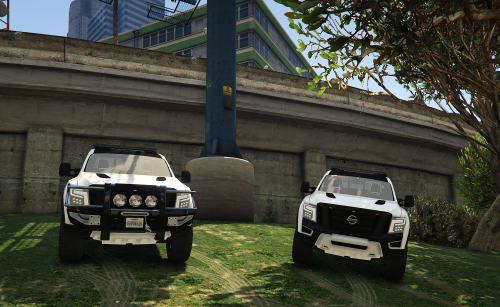 Yes, it is higher than the tires, i fix it but still not updated i'll add some extras interior
- 12 comments
- 1 review
-
-
Thank you for your comment Your suggestion has been implemented Can you explain more? Fix the rolling over
- 12 comments
- 1 review
-
-

- 1
-
-
.thumb.png.9164acdb73dfb4e40e9bd20fb1d4588d.png) now its OIV pack The modified version has been uploaded no need to rename the car use it as TITAN17 also You can add it to the list of police cars edit : \Grand Theft Auto V\lspdfr\data\agency.xml <Agency> <Name>Los Santos Police Department</Name> <ShortName>LSPD</ShortName> <ScriptName>lspd</ScriptName> <Inventory>default</Inventory> <TextureDictionary>web_lossantospolicedept</TextureDictionary> <TextureName>web_lossantospolicedept</TextureName> <Loadout> <Name>Patrol Unit</Name> <Vehicles> <Vehicle>police</Vehicle> <Vehicle>police2</Vehicle> <Vehicle>police3</Vehicle> <Vehicle>police4</Vehicle> <Vehicle>titan17</Vehicle> </Vehicles> edit : \Grand Theft Auto V\lspdfr\data\duty_selection.xml <Description name="Police Riot" fullName="Brute Police Stockade" agencyRef="noose">riot</Description> <Description name="titan17" fullName="Nissan Titan" agencyRef="lssd">titan17</Description> </VehicleDescriptions>
now its OIV pack The modified version has been uploaded no need to rename the car use it as TITAN17 also You can add it to the list of police cars edit : \Grand Theft Auto V\lspdfr\data\agency.xml <Agency> <Name>Los Santos Police Department</Name> <ShortName>LSPD</ShortName> <ScriptName>lspd</ScriptName> <Inventory>default</Inventory> <TextureDictionary>web_lossantospolicedept</TextureDictionary> <TextureName>web_lossantospolicedept</TextureName> <Loadout> <Name>Patrol Unit</Name> <Vehicles> <Vehicle>police</Vehicle> <Vehicle>police2</Vehicle> <Vehicle>police3</Vehicle> <Vehicle>police4</Vehicle> <Vehicle>titan17</Vehicle> </Vehicles> edit : \Grand Theft Auto V\lspdfr\data\duty_selection.xml <Description name="Police Riot" fullName="Brute Police Stockade" agencyRef="noose">riot</Description> <Description name="titan17" fullName="Nissan Titan" agencyRef="lssd">titan17</Description> </VehicleDescriptions>- 8 comments
- 1 review
-
-
-

.thumb.png.9164acdb73dfb4e40e9bd20fb1d4588d.png)