

Sir Johnny
Members
-
Joined
-
Last visited
Everything posted by Sir Johnny
-
yes, I have the prerequisites
-
what do you mean by prerequisite API, the latest LSPDFR?
-
I don't know if this is the right type of topic (GTAV Support under LSPDFR) and sorry if it isn't, but I just ran into a crash when loading the Real Time Sync Reborn plugin by @Sp4s12 I shall attach a portion of the crash log when the crash occurred (p.s. the hashtags in the APPID is there to hide it from public) CrashPortion.txt
-
omg I finally figured it out.
-
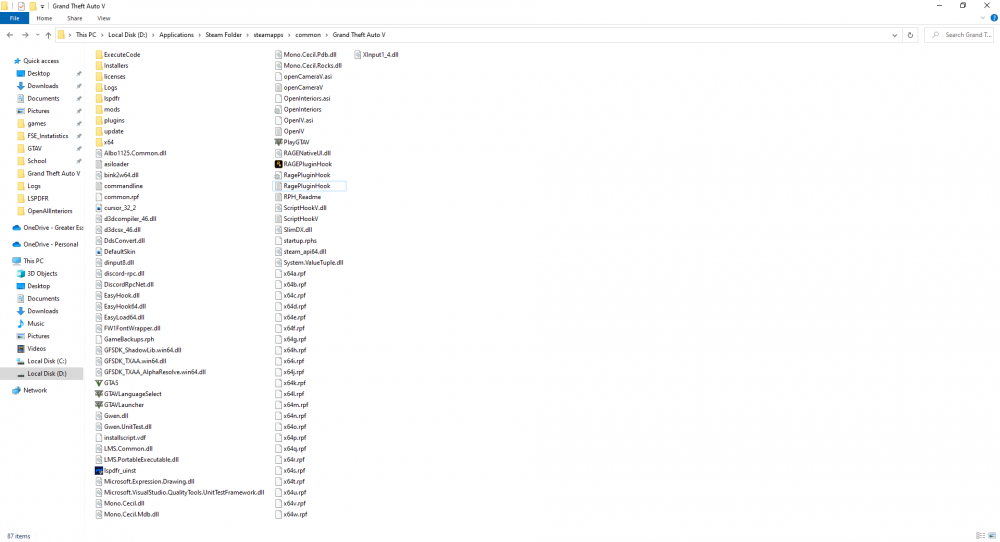
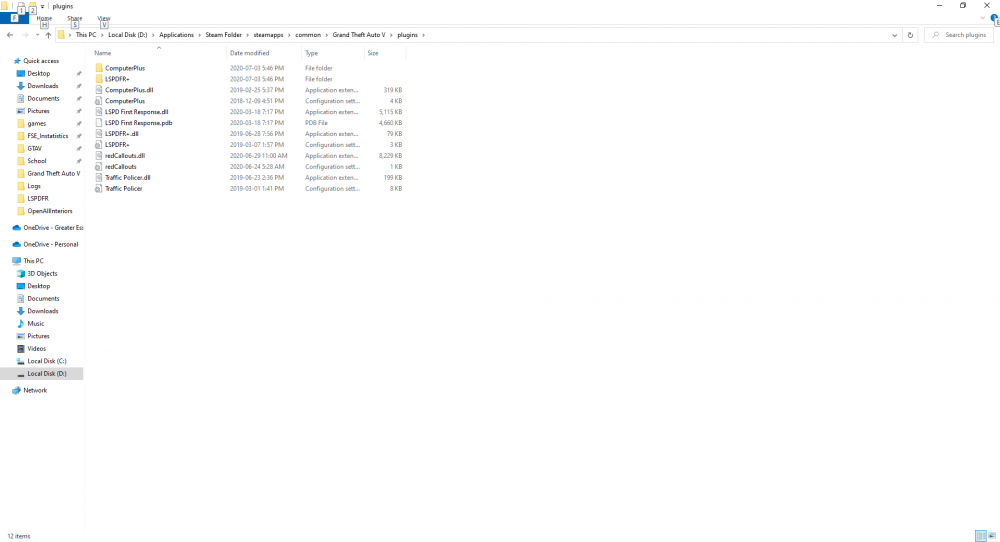
I am having a problem with Computer+, when I went on duty, stopped the police vehicle and held 'E' nothing happened except my horn, I also tried 'Q' but it opened the default computer. I saw that the files are supposed to be in plugins\LSPDFR\ but when I installed the LSPDFR mod, it didn't make a LSPDFR folder inside plugins. I tried creating it but then LSDPFR didn't load. (lspdfr loaded without LSPDFR folder.) So I checked any log files I could find, the log I found that matches my time was just called 'RagePluginHook', so I opened it but doesn't mention Computer+ and doesn't have any errors relating to Computer+. I can also confirm that the Computer+ files are located in the same directory as the default LSPDFR files "Grand Theft Auto V\plugins\" RagePluginHook.log