


.jpg.a4d082b813dab7102dddb1941b11ab47.jpg)

J Sterry
Insiders
-
Joined
-
Last visited
Everything posted by J Sterry
-
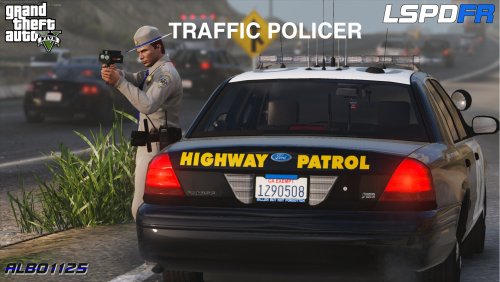 yes but it works but it might not work for everyone it really just luck also about the LSPDFR Version and it says to use at your own risk, it says that for everyone because its outdated and has not been updated to make it fully up to date with the new version of lspdfr but doesn't mean that it wont work with the new version of lspdfr
- 3,646 comments
- 306 reviews
-
 i looked at it is on his end, the hurk will have to fix it, but that is probably not going to happened, because he has not been online for a while
- 955 comments
- 158 reviews
-
just at the stage 2 or stage 1 2 and 3 also i will look that it in my game have it install. are you using the addon or replace it
- 955 comments
- 158 reviews
-
.thumb.png.ddc170ce91630400bf2f8429bb715e58.png) looks nice i will give it try tomorrow
looks nice i will give it try tomorrow -
i just reinstalled two days ago and found out that it works for me again so i dont know any more
- 3,646 comments
- 306 reviews
-
-

- 1
-
-
@Scruffy517 all you have to do is just have to quickly press the download ion that the top right corner of the page before the error message comes up
- 955 comments
- 158 reviews
-
-

- 1
-
-
-
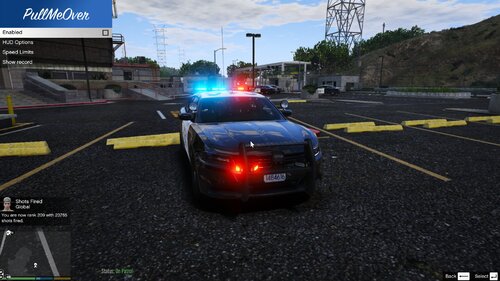
hi everyone have have good news i founded out that there is a way to have the chp steady burn pattern for stage 3 light and the normal stage 3 flashing light pattern i am making a video now to show you how
-
 @Lucasfan1201 hi if you are talking about the tactical clothing in this photo then the answer is yes, Hanako has just started to sell it on his discord [ the tops and pants] this is not my screenshot it was taken by crunchycat
- 38 comments
- 4 reviews
-
oh didnt know that cool changed it to say disables the steady burn not fixes it
-
-
What do you mean its not a fix
-
@MrSausageThe Hurk has not online for a long time and the file has been like at for a while but if the you don't know help to get passed that issue then go to page 27 and one of my comments tell you how!! 🙂
- 955 comments
- 158 reviews
-
thank you
-
all issue i know of are fixed but if there are more please let me know and i will fix them thank you also thank you for 46 downloads
-
@Sweet T Gaminggo to page 27 and one of the comments i posted tells you how to get past issue, i know that that the addon still works because i Redownloaded it three days ago because i was redoing my mods folder
- 955 comments
- 158 reviews
-
-
- 1
-
-
-
hi sorry but if you are one of the people who downloaded this or are thinking about it please wait until the new version is done waiting for approval there are some fixes thank you
-
yeah sorry for that i had changed the siren settings because I have two different sirens in game but forgot to change the ELS file back to the normal settings before uploading it it so be fix in the update that is waiting for approval preview video
-
@Timorus delete traffic policer because it does not work with the newest version of Lspdfr
- 3,646 comments
- 306 reviews
-
-
- 2
-
-
i will be adding a video soon
-
yeah weird that he would delete it but all we can is wait and see if he fixes it. he was last active July 24 ( viewing the site) but the last comment/content was May 6, 2018
- 955 comments
- 158 reviews
-
-
- 1
-
-
@sunde2000 the addon works everyone just has to press the download icon in the top right before the error message comes up any way no one is able to reupload something without the author's permission
- 955 comments
- 158 reviews
-
-
- 1
-
-
The test lines sound great
-
please leave your feedback

.thumb.png.ddc170ce91630400bf2f8429bb715e58.png)
