


ace323
Members
-
Joined
-
Last visited
Everything posted by ace323
-
-
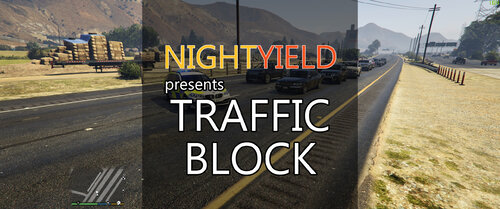 Love this plugin! Especially the multi-barrier feature. Much easier than pulling out those wonky STP cones and trying to place in-line. Keep up the good work.
- 113 comments
- 10 reviews
-
-

- 1
-
-
Traffic Block will not work while Stop The Ped is installed. Anyone else having this problem?🤔
- 113 comments
- 10 reviews
-
This plugin is awesome and works flawlessly, until I go On Duty. As soon as I go On Duty, the menu key ("u")does nothing.
- 113 comments
- 10 reviews
-
Hi NightYield. I installed traffic block and the game crashed while loading LSPDFR. I tried again and the game loaded fine. I spawned in at the prison parking lot and tested the barricade features and it worked-no problem. Since then, the U key is not bringing up the menu. I uninstalled, so I do not have a log file for you, but I will reinstall tomorrow and send you the log file if it's still not working. The plugin itself looks awesome-nice work. Looking forward to using it. RagePluginHook.log
- 113 comments
- 10 reviews
-
-

- 1
-
-
Opened the menu with the "U" key. It worked once and has not worked since. Something definitely wrong.
- 113 comments
- 10 reviews
-
 What should they be set to?
 -
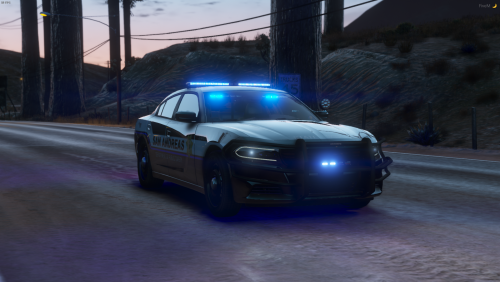 Please help. I love this car, but I cannot get the lights working because I have no idea what to do with the carcols file. I never tried installing a vehicle that had one. Do I drag it into a folder? If so which one? Or do I choose one of the sirens in it and copy into another file? I'm lost... trying to install in LSPDFR not fivem.
- 13 comments
- 2 reviews
