

RacoonOne
Members
-
Joined
-
Last visited
Everything posted by RacoonOne
-
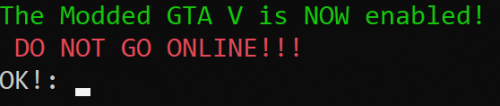 Welcome to the Modded GTAV Folder Changer! This Script was made to quickly switch between the Modded and the Standalone GTA V. This Folder can be located anywhere! You just need to configure some things! 😄 Installation: Get the Path of 1 Folder Before your GTA V Root. For me it would be “E:\Rockstar Games\GTA V”. Now Open “Modded_GTAV_Folder_Changer.ps1” with your favourite editor like Notepad++. and paste the Path you just copied between the “ “, as marked below. Now you will need to rename your “Grand Theft Auto V” folders. If you do it like me youll have 2 separate folders, one is the standalone GTA V and one is the Modded GTA V. Name the Modded GTA V Folder: “Grand Theft Auto V – Modded”. You don’t need to rename the Standalone Version. Do it like shown below: If you now Start “Change_GTAV_Version.bat”, it will switch your GTA V Version to the Modded Version. The Folders will automatically be renamed like shown belown: You will get a little CMD window which tells you that the Version has been changed: If you Start “Change_GTAV_Version.bat” again, it will switch your GTA V Version to the Standalone Version and so on. You will get a little CMD window which tells you that the Version has been changed: If you have any further questions please let me know. Ill be happy to answer them to you 🙂