



SgtCrambo
-
Joined
-
Last visited
Everything posted by SgtCrambo
-
From the album: LSPDFR Newbie Screenshots
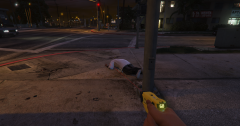
Taser deployed... EMS respond code 2. Please remove the barbs. -"Are you injured?" -"HELL yeah, I'm injured. I just got tased!" -"Quit crying, ya wimp." -
-
I warned you...
-
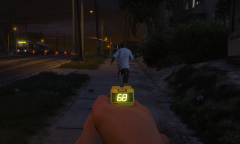 Was almost off duty... Until this guy started running?
-
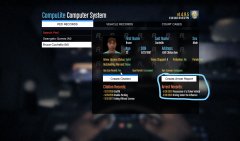 12_Final arrest report...
-
.png.337a5a478036515b5097819f49176c39.png) K9 Stella waits in the back seat (with the AC on, of course)
K9 Stella waits in the back seat (with the AC on, of course)
-
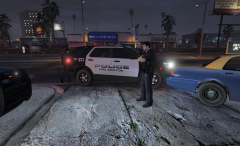 10_Off to the detention center, you go
-
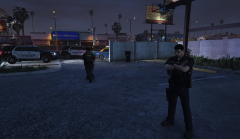 09_Too bad I couldn't transport him myself
-
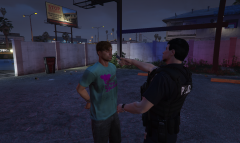 08_Just because I'm curious... Breathalyzer test
-
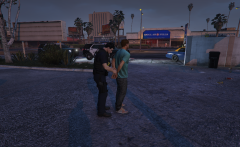 07_You failed all 3 tests... You're under arrest
-
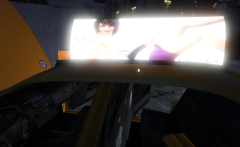 06_To search the vehicle
-
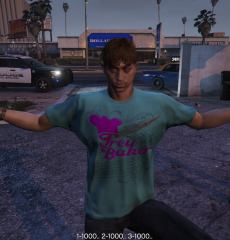 05_Thats.... NOT how you do it
-
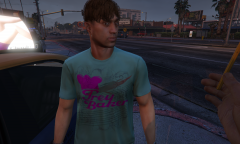 04_With your eyes, and EYES only
-
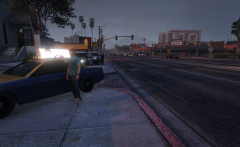 03_Routine backup
-
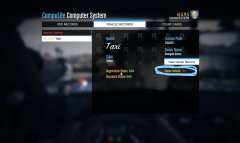 02_Makes sense why he crashed
-
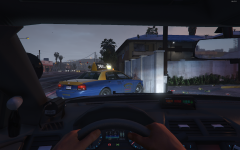 01_Something... isn't right here.
-
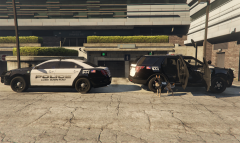 Cover Photo.png
-
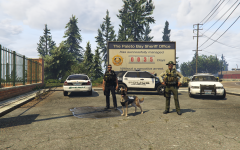 The LSPD likes to socialize with other departments.
-
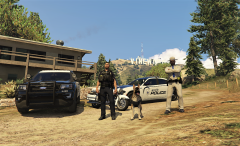 Vinewood Hills Substation with the SAHP
-
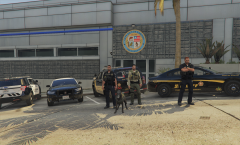 Get-together with the LSSD
-
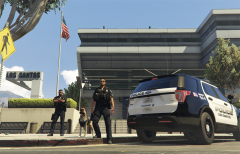 Arrived at the LSPD Main Station/Impound
-
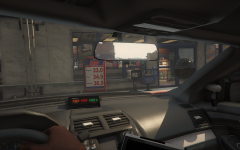 Can't start the day without the necessities
-
-
From the album: LSPDFR Newbie Screenshots
Wonder what he's wanted for? I warned him about the taser. -
From the album: LSPDFR Newbie Screenshots
He may be spending awhile in county. Then prison. The arraignment will be quite interesting. -
From the album: LSPDFR Newbie Screenshots
K9 Stella would've LOVED to have searches that car, or chase the suspect. -
From the album: LSPDFR Newbie Screenshots
He's going to be in the detention center for awhile, until the judge so decides to grace him with video court or a PR bond. -
From the album: LSPDFR Newbie Screenshots
Unfortunately, with K9 Stella taking up my back seat, I'll have to settle with having him transported by another unit. -
From the album: LSPDFR Newbie Screenshots
I already knew he was intoxicated, but the results showed almost TWICE the legal limit. Not a good evening for him. -
From the album: LSPDFR Newbie Screenshots
He failed all three sobriety tests, in addition to possessing a stolen vehicle. Being detained is called for. -
From the album: LSPDFR Newbie Screenshots
He failed all three tests, even though I had probable cause to begin with; to search the vehicle. Poor K9 Stella shall remain in the cruiser. -
From the album: LSPDFR Newbie Screenshots
If his eyes and one-leg stand don't scream "I'm drunk as f*$!" I don't know WHAT does. -
From the album: LSPDFR Newbie Screenshots
He must be pretty messed up if he can't differentiate between his head and his eyes. -
From the album: LSPDFR Newbie Screenshots
Backup arrives on scene to keep the suspect under control. Who knows what could happen. -
From the album: LSPDFR Newbie Screenshots
Taxi cab, confirmed stolen. -
From the album: LSPDFR Newbie Screenshots
Crashed AND stolen taxi cab? That's double trouble. -
From the album: LSPDFR Newbie Screenshots
-
From the album: LSPDFR Newbie Screenshots
35 days, eh? -
From the album: LSPDFR Newbie Screenshots
Chilling with a State Trooper at the Vinewood Hills Substation, along with K9 Stella, of course. -
From the album: LSPDFR Newbie Screenshots
While K9 Stella rests, hanging out with the LSSD and their K9, Brandy. -
From the album: LSPDFR Newbie Screenshots
Appropriate and patriotic background -
From the album: LSPDFR Newbie Screenshots
Have to grab a coffee, 2 cream-filled long johns, and some pig ears for (you know who). -
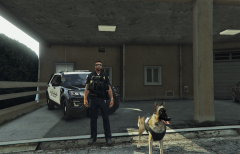
From the album: LSPDFR Newbie Screenshots
Great start to the day. K9 Stella looking happy as ever. -
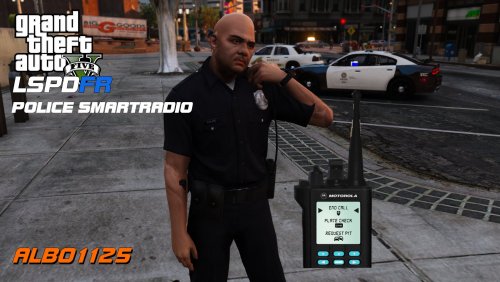 Cool, glad you got it figured out. If you haven't already, check out Bijoijo's plugins. He used the source code from Albo's originals, but drastically improved them (and their performance impact). He also regularly updates them. https://bejoijo256.wixsite.com/bejoijo/home/
- 1,196 comments
- 127 reviews
-
-
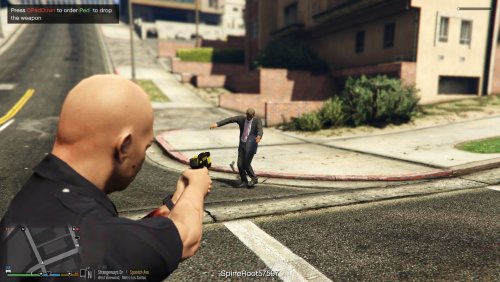 I had the same issue. I spent hours uninstalling and reinstalling plugins one by one, checking drivers, chipset updates, etc. in effort to figure out why my FPS was only 45-50 in the city while on duty (specifically near the Impound Police Station). Disabling it brought my frame rate right back up to a solid 60. I have the exact same specs as you, except my CPU is an i5-7600k. It is pretty disappointing because a lot of callouts result in armed suspects that start shooting at you without warning, which isn't always realistic. The ability to disarm them would be a nice addition; but unfortunately, it seems like this plugin isn't optimized and is pretty outdated. Hopefully the developer will consider making improvements. Otherwise, I'll just have to live without it because the game is unplayable with such low frame rates and stuttering.
- 39 comments
- 15 reviews
.png.337a5a478036515b5097819f49176c39.png)
