fordmatt57
Members
-
Joined
-
Last visited
Everything posted by fordmatt57
-
Something I forgot or to add, originally I had the epic games version. This loaded the rage plugin fine but would then stick on the game with Lspdfr loading. Then I read that you can get mods etc on epic do I uninstalled and bought the retail version which now runs off the rockstar launcher. So there hasn’t always been a error with getting the plugin to load. Seems a very common issue with no resolution?
-
Restarted, done two clean installs following the instructions carefully. Have also turned windows defender off. still not working.
-
I have uninstalled avg, still does not work.
-
Ive tried all day again, fresh install. Followed tutorials for install. Downloaded new drivers. Run a defragger fro the HDD. Please can anyone help here?
-
Finally given me a log after verifying the game integrity and reinstalling lspdfr! RagePluginHookLauncher.log
-
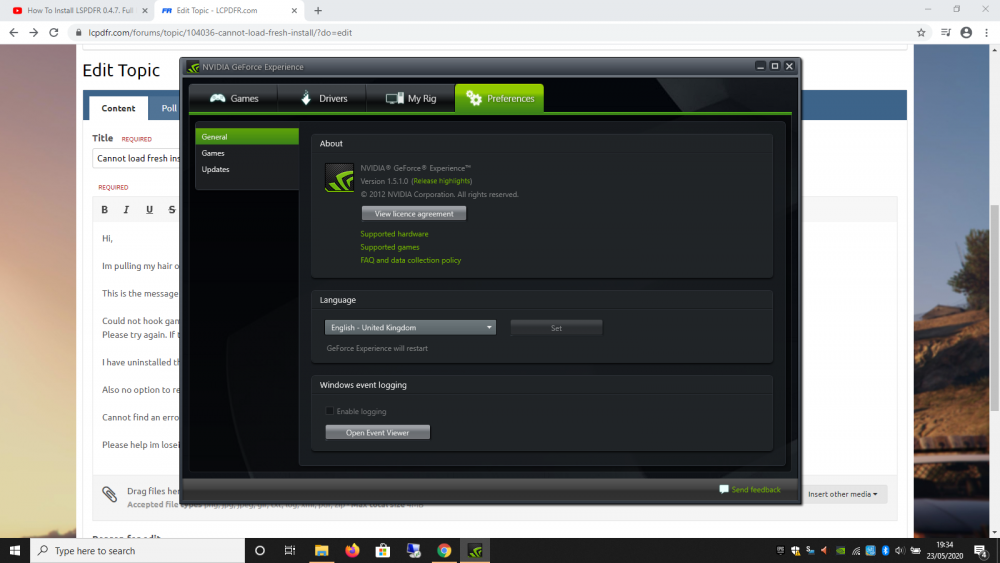
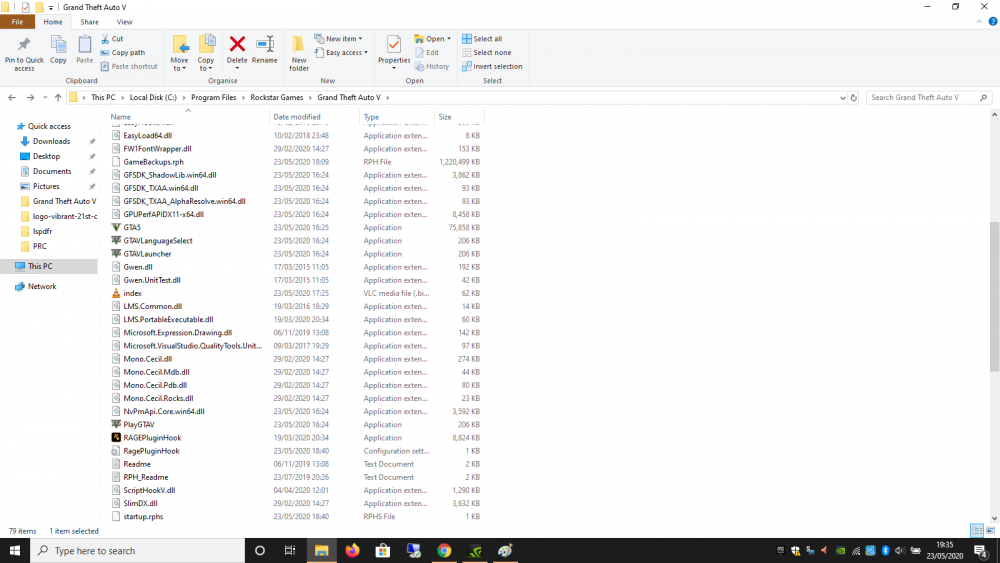
Hi, Im pulling my hair out with a fresh install. I've tried 3 times of install of everything and cannot get it to work. Story mode without works fine. This is the message i get when loading the Rage Hook: Could not hook game process. Insufficient permissions or bad anti-virus. Please try again. If the problem persists, please restart your computer. I have uninstalled the ant virus. Doesn't work. Also no option to remove the geforce overlay. cant find it, its no the same application as the one on the support. Cannot find an error log. Please help im loseing my mind.