



Galaxy5000
Members
-
Joined
-
Last visited
Everything posted by Galaxy5000
-
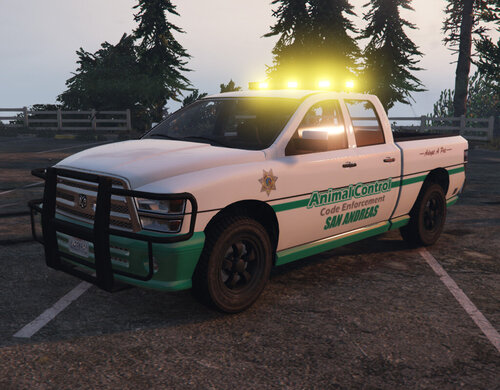 Just updated the model. Fixed a problem with the grill illuminating at night when it was approaching. Wrong texture was assigned to polygons on LOD models.
- 5 comments
- 4 reviews
-
This is an add-on vehicle Stock Bison unwrapped and textured Template included Created Light bar with extra lights and reverse lights Modified ram bar from Stock Bobcat Added collision to boot to help contain animals You receive a machete when entering the vehicle Instructions -Start OpenIV -Make sure you have a modified gameconfig.xml that could handle add-on vehicles with no problem, if you have a modified gameconfig installed, skip this step -OpenIV click Edit Mode -Put the "animalc" folder in update/x64/dlcpacks/ -Go to update.rpf/common/data and find dlclist.xml -Right click on dlclist.xml Select edit. -Copy this line: <Item>dlcpacks:/animalc/</Item> -Paste it to the list, save it -start the game -Model name: animalc To have LSPDFR use the vehicle for animal control calls -Open StopThePed.ini with notepad or preferred software. -Scroll down to [AnimalControlService] and change The vehicle model name for animal control to the example below. // The vehicle model name for animal control unit AnimalControlVehicleModel=animalc
- 5 comments
- 4 reviews
-
-

-

- 4
-

