


Luckyluke87
Members
-
Joined
-
Last visited
Everything posted by Luckyluke87
-
Hi!!!!! You better use Stop The Ped And Ultimate Backup. Instead of Arrest Manager, Traffic Policer And PoliceSmartRadio. They do not work with LSPDFR 0.4.7. I have had that too. Otherwise, go on the Discord of: Criminal Justice for help. https://discord.com/channels/403712395622612992/678686131876790302RagePluginHook.log Hello Matteov2.0!!!! Maybe, You have these screenshots required? I hope that you can help me? Greetings Luke.


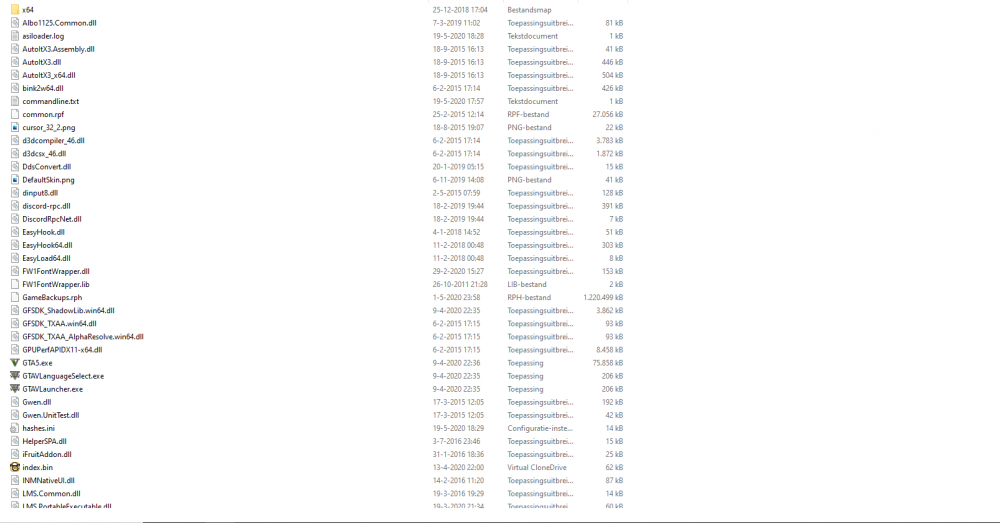
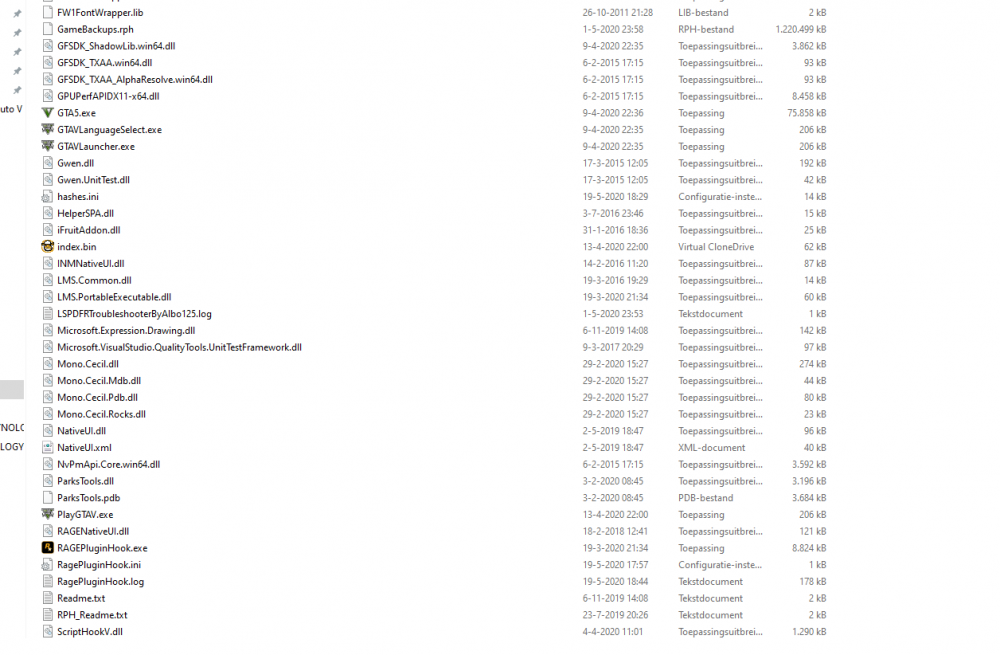
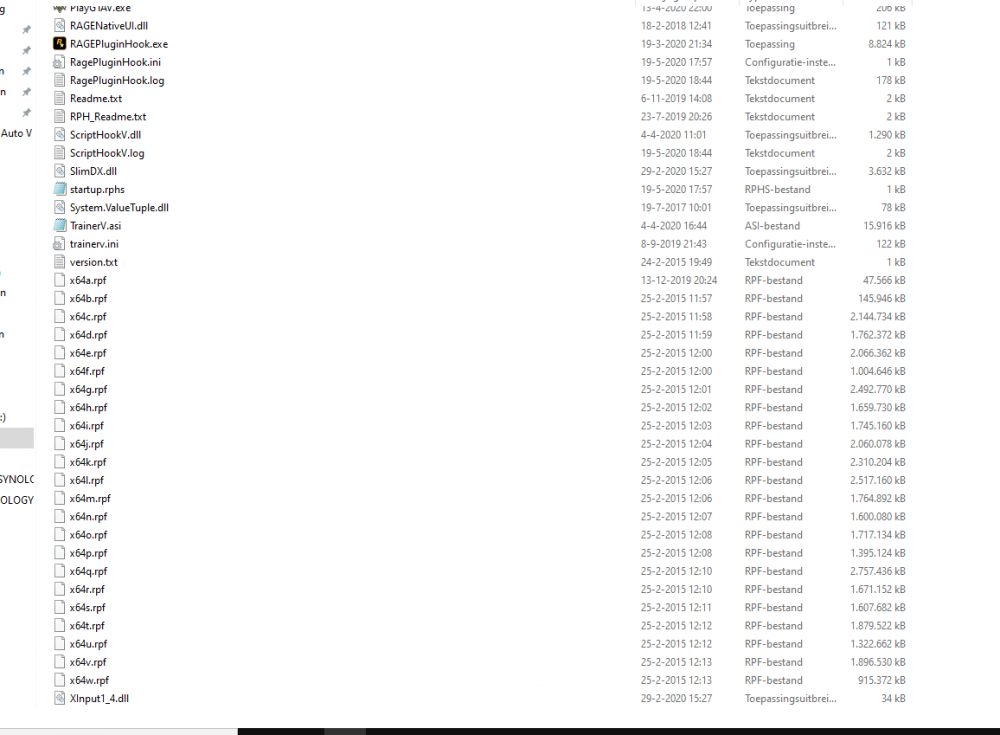 Hello everybody!!!!! I am using the latest version of Stop The Ped (4.9.1.5) And I am using the latest version of Ultimate Backup (1.8.1.8) I am using the latest LSPDFR V 0.4.7) Everything works well in itself. However, if I open the trunk during the arrest. Then the game gets stuck. What can I do about it? I hope someone can help me with this?Hello DepArshia & Zen!!!!!! I want to let you both know. That my problem with LSPDFR is solved!!!!! My problem with GTA V with my LSPDFR. Was that I used the trainer: Enchanted Native Trainer. And that caused my LSPDFR to crash. Now, LSPDFR works well !!!! Thanks!!!!! For your help And Advise!!!!!! Greetings Luke.Okay!!!!! Thanks DepArshia!!!!! I sure shall do.
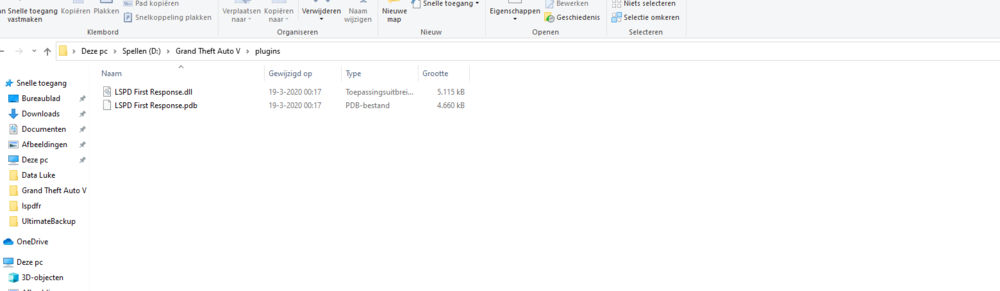 Hello Zen!!!!! Thanks!!!! For your comment And Help!!!!! Greetings Luke. RagePluginHook.log



