GhoulVampire
Members
-
Joined
-
Last visited
Everything posted by GhoulVampire
-
Hi! I am playing as a SAHP officer and I would like to call for highway patrol backup units through VocalDispatch. When I request any type of backup it's always BCSO, LSSD or LSPD coming, never SAHP. I know you can do this by opening UltimateBackup menu and clicking on "State Patrol", but i want to use voice commands. Is there any possibility to make this work as i want?
-
Hi, i have this problem since i first installed LSPDFR. The issue is that sometimes vehicles and peds just disappear (Not only when i interact with them). You can see this* on the two videos linked below. Plugins installed:
-
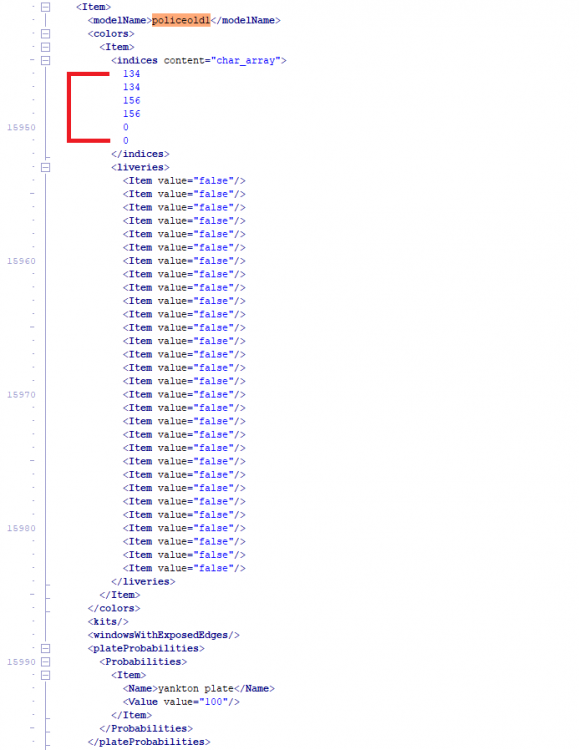
I have the same issue with my slicktop CVPI on "policeold1" and "policeold2" slots. I tried using trainer to change paint type and it worked. I think these two slots are by default set to matte, so when you change paint type and color to metallic or classic everything should be fine. I'm still figuring out how to change the paint type in game files to make other officers use proper paint on their cars. Edit: If you want to change it permamently, go to OPENIV (Grand Theft Auto V\mods\update\update.rpf\x64\data) and edit "carvariatons.meta". Find policeold1 model and edit lines shown on screenshot.