deadskull256
Members
-
Joined
-
Last visited
Everything posted by deadskull256
-
ok i found out the problem. You have to use the original gta 5 file and not a copy.. Thanks for everyone's help
-
here's what i have in my modded folder
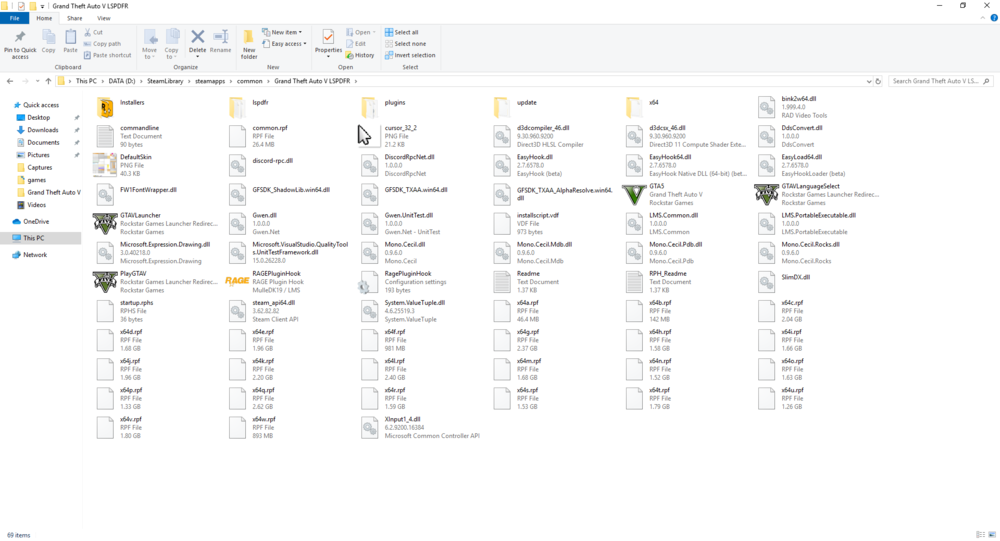
-
so hold on. I created a backup on the original folder. Would having the original gta 5 folder in there also, mess it up.
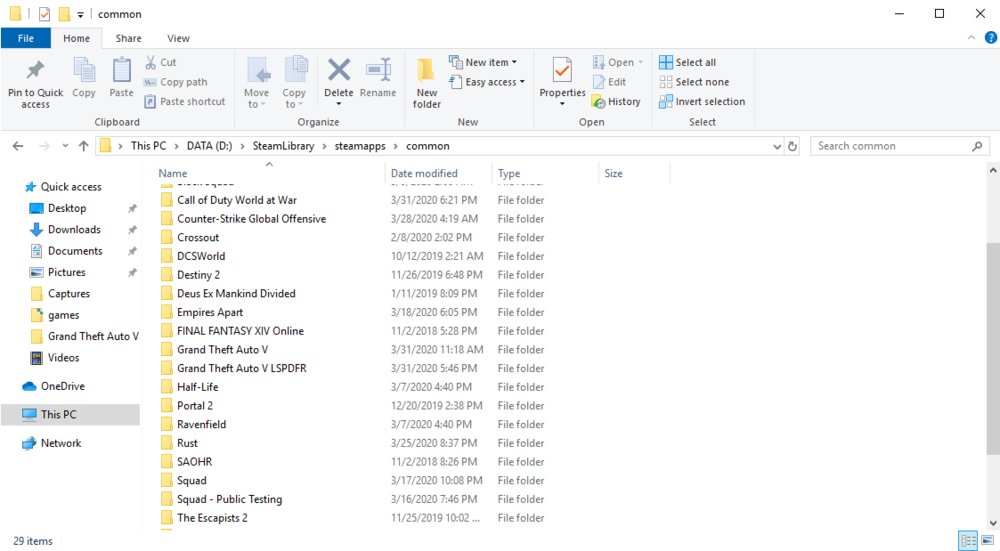
-
i don't even have scripthook on it and it still doesn't work. All i have on it rn is gta, lspdfr, and rage. Sept for if your talking about scripthook being rage
-
I uninstalled ragehook and even lspdfr and it didn't work... I even uninstalled another anti-walware
-
i'll uninstall ragehook. GTA will take to long to reinstall. I'll try it and get back to you
-
running as an administrator didn't work, sadly.
-
sadly, uninstalling my anti-virus didn't work
-
i have a steam bought gta 5
-
no i haven't. I'm sorry i don't really know what you mean by that
-
go look up jeff favignano gta 5 modding tutorial and he will show you how to set it up. It's not hard at all.
-
So i tried to start up lspdfr but ran into a problem. It says Insufficient permissions or bad anti-virus. I wen't through my windows security and started adding rage hook into the white listed section and i also added it to McAFee ant-virus and it still doesn't work. As soon as i start it up, it posses for like 2 seconds then it pops up a menu for a fraction of a second then goes back to the original game. McAFee firewall is even disabled.