


ThekikoL77
Members
-
Joined
-
Last visited
Everything posted by ThekikoL77
-
 esos vehículos a continuación hacen que el juego se cierre en la pantalla de carga en el menú principal
- 264 comments
- 21 reviews
-
 those vehicles below cause the game to close on the loading screen in the main menu
- 85 comments
- 19 reviews
-
up to there load nothing else
.thumb.png.f70de3c43aa82546dcd07e57492d2a72.png)
-
remains the same, even if I run it as administrator I installed the game yesterday and neither the gta launcher nor the rage launcher works
-
update the graphics drivers, disable the antivirus, I don't have any plugin ...
-
0.4.7 also update the mods folder, since it came out in Open VI that updates it otherwise it would give me an error

-
hello everyone, I don't know much about plugins and things of that kind, the fact is that previously I played Lspdfr in version 0.4.7 until they updated the game in the summer, from there, my GTA V He started to go a little crazy on the issue of crashed, to this day I still cannot solve it (on the loading screen this 7 seconds) it happens with Rage Plugin and with the Rockstar Launcher, I have watched many videos and forums and it has been of little use , the mods I use are the Lspdfr and the Eup skins, I appreciate any help.
-
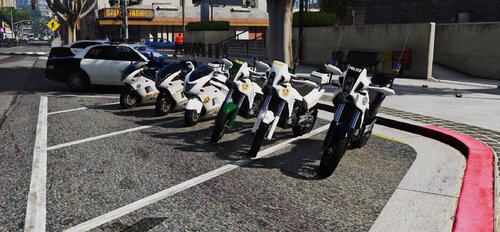 When installing Police_Hakucho_replace_F5544, the game crash on the loading screen
- 37 comments
- 2 reviews
-
In traffic the motorcycle does not appear, when I ask for motorcycle reinforcements it does not appear
- 37 comments
- 2 reviews
.png.166b6636878c3693db6225b5fbb6647c.png)

