


RandomPerson101
Members
-
Joined
-
Last visited
Everything posted by RandomPerson101
-
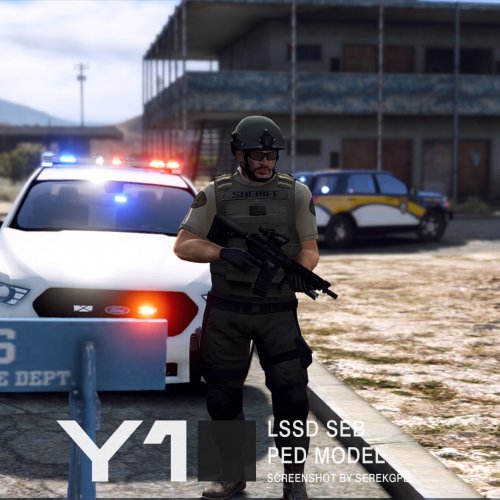 @Yard1 Just a few unnecessary nitpicks and some advice or something, The White Variant of the Model has Miscolored Arms for their Short Sleeve Outfit, For Example, LSSD Seb NPC Spawns in-game, White Head is used, therefore body will use the white variant if the short sleeve model is used, problem is, Their arms are colored enough to the point it looks like it belongs to a Latin NPC instead of a White NPC, Second, The Glasses of the NPC have messed up Normal Maps and Specs, I don't know if this is a problem with my game, but their lenses when seen up close, flicker between textures, ranging for these white lines that probably mean fence textures to a bunch of writing, probably Vom Feuer or Hawk & Little or something else from the generic textures and stuff...oh and the model is slightly unoptimized, two helmets using a black and white texture when you can just use a uni(universal) texture for one helmet and modify the ymt file of the ped model to use only ONE hair component that uses the universal texture(can be done by setting texID to 0) and then setting the hash collision value to 255 to make it always show up on the peds, oh and the long sleeve has unnecessary white and black textures when there's literally no difference between the textures.
- 6 comments
- 3 reviews
-
Apparently For Me, My Peds.Ymt SUDDENLY crashes, Like, I Just Start Up my Game, Then it crashes and never starts unless i replace it with my backup again
