
Sebbie Games
Members
-
Joined
-
Last visited
Files posted by Sebbie Games
-
Dutch Stop The Ped
Get fully setup for stop the ped in the dutch version!
What Does It Have:
- Dutch Vehicle Items.
- Dutch Traffic Stop Questions.
- Dutch Ped Answers and Questions.
- Dutch Pat Down Items.
- Dutch Custom Questions.
How to Install
Grand Theft Auto> plugins> LSPDFR> Stop The Ped
Then Replace the XML with the ones in the download.
Website: https://www.realplayrp.com/Home
- 836 Downloads
- 8 Comments
Updated -
Hier, nederlandse vragen voor Stop The Ped tijdens een Traffic stop.
Download het bestand dan krijg je een xml die sleep je naar:
Grand Theft Auto V> Plugins> LSPDFR> Stop The Ped
Daar vervang je de XML Die er al is.
JE MOET STOP THE PED HEBBEN
MY WEBSITE: https://www.realplayrp.com/Home
- 418 Downloads
- 2 Comments
Updated -
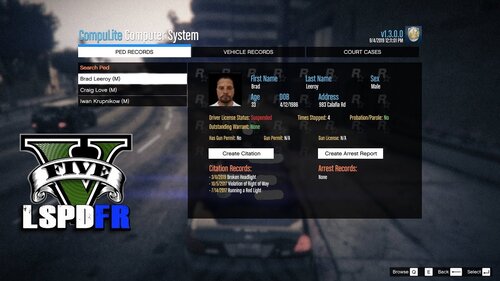
Hierbij Nederlandse Charges en Citations voor compulite in lspdfr van Bejoljo (https://www.bejoijo.com/post/compulite)
Download het en sleep het naar:
MY WEBSITE: https://www.realplayrp.com/Home
Grand Theft Auto V> plugins> lspdfr> compulite
Daar zie je 2 xml files and die replace je met de gene die in de download zitten
Wat Zit In De Download:
Je krijgt Nederlandse Boetes
Je krijgt Nederlandse Charges
- 804 Downloads
- 2 Comments
Submitted