Wizenedlake
Members
-
Joined
-
Last visited
Files posted by Wizenedlake
-
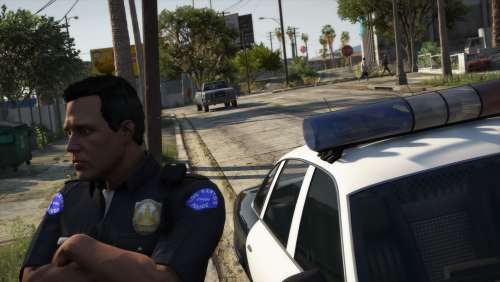
The LSPD's "thin blue line between ruthless gangs and the helpless public" spends more time stealing and planting evidence than arresting criminals. But hey, at least we can say we have a gang task force.
Community Resources Against Street Hoodlums (C.R.A.S.H.) was a unit formed by Frank Tenpenny. If you've played GTA SA you know how well that went.
This adds textures for your class As, Bs and Cs based off of the uniforms seen in SA.
EUP:LO is required!
- 263 Downloads
Updated -
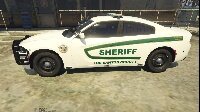
This pack was based off the Indian River County Sheriffs Office and is lore friendly for the LSCSO,
please keep in mind that this is my first texture and any feedback/advice is much appreciated.
Credit to infidelplz for the models, they can be found here:
https://www.lcpdfr.com/downloads/gta5mods/vehiclemodels/25452-bcso-pack-els-dlc-included/
The Tahoe texture should work for all three Tahoe models, and same with the FPIU.
Includes:
2018 Tahoe, Marked, Slicktop.
2020 FPIU, Marked, Slicktop.
2018 Charger, Marked.
Installation
1)Use the Installation Guide in the model files to install the models.
2)Go into the .ytd file of the vehicle you want to replace the texture of.
3)Drop the .PNG file included into the texture editor window.
4)Click save.
- 43 Downloads
- 2 Comments
Updated