


EnTee
Members
-
Joined
-
Last visited
Everything posted by EnTee
-
Hello everyone I'm sorry if this is a noob question and I'm sorry if this doesn't belong here. I just downloaded a new ELS car, but it has the British sirens on it and I just want the GTA standard sirens on it. How can I change that? It's only that specific car that has the British sirens. I looked in the ELS file but I can't change it... Thank you in advance
-
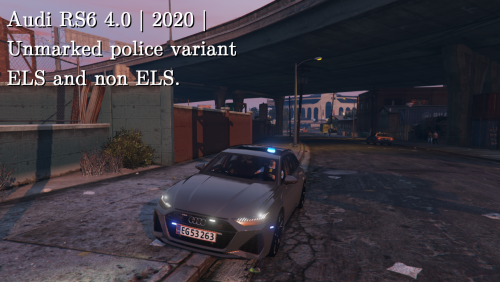 How can I change the sirens to the vanilla GTA V ones? I don't want the British sirens 😅 Thanks.
- 9 comments
- 1 review
-
It worked, thank you!
-
Oh, thank you! Do you know in which folder?
-
Hallo Eerst en vooral ben ik een noob in modding. Ik heb mijn sirenebestand in RESIDENT gewijzigd, maar ik vond het niet leuk. Dus ik heb natuurlijk geen kopie gemaakt van het originele sirenebestand 🤦♂️, en nu kan ik het oude niet terugkrijgen. Is er iemand die mij kan helpen met het originele sirenebestand? vriendelijke groeten
-
Hi everyone! So, I just installed ELS. I've placed the ELS folder, ELS.ini, ELS.asi and advancedhookv.dll in the GTAV folder. Ook de ELS voertuigen staan in GTA V > ELS > pack_default... Ik heb mijn TogInfoPanl naar 35 (end) veranderd. The ELS vehicles are also in ELS > pack_default ... I have changed my TogInfoPanl to 35 (end). I have no idea what else I can do ...
