DJS80
Members
-
Joined
-
Last visited
Everything posted by DJS80
-
Yes I did
-
The installation manual of LSPDFR tells you to extract LSPDFR first and then RageHook.. Ragehook can have newer versions of the files https://www.lcpdfr.com/lspdfr/04/install/
-
I've done a complete fresh install of GTA5 and LSDPFR and guess what.... Still no sound during call out? Can anybody please help me?
-
Yes, I did the LSPDFR reinstall and I removed manually all the files (including the call out folders). Still no result
-
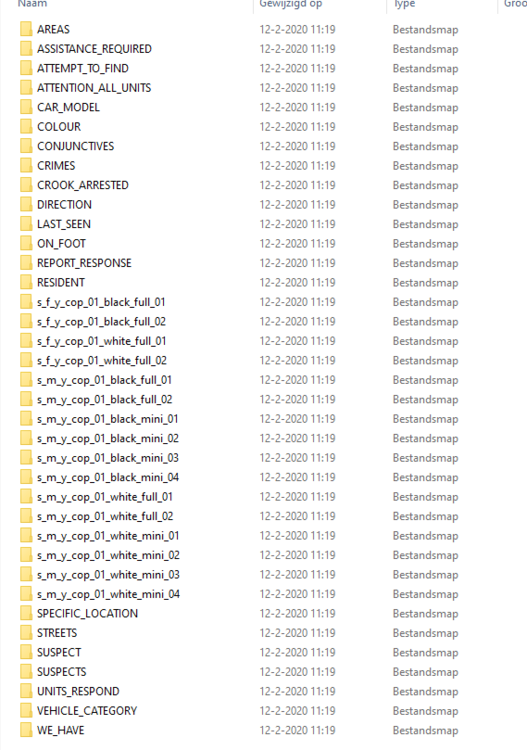
Just did a new install of LSPDFR and Rage pluginhook bu still no sound during a dispatch callout (other than the buzzing noise). I've read some older threads where people ask for the Police scanner folder in LSPDFR but i'm missing that folder. Is that correct?
-
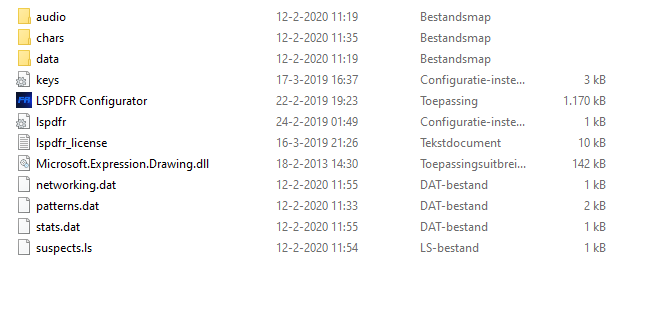
Hello, when i'm playing the LSPDFR mod there is no dispatch audio when there is a call out. Something has chaged because it has worked.. I reinstalled LSPDFR again and erased all other mods but still no audio. The weird thing is dat i can hear the normal police scanner at the background but once there is a real call out, no audio at all (only the background noise of the scanner itself). I've added some screenshots off the LSPDFR map with all the audio files (is it correct that when i play these audio files with Windows MediaPlayer I can't here any sound at all?)