
Pigeon Studios
-
Joined
-
Last visited
Everything posted by Pigeon Studios
-
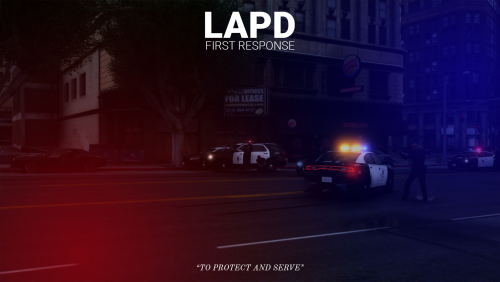 Hello 26eliott, I apologise for the late response to this comment. I have had a year off focusing on work. Unfortunately I cannot prove you the pack as they are private and currently in development from myself and developers inside my team. We are expecting to release a hyper-realistic LAPD pack by the end of the year.
- 5 comments
- 1 review
-
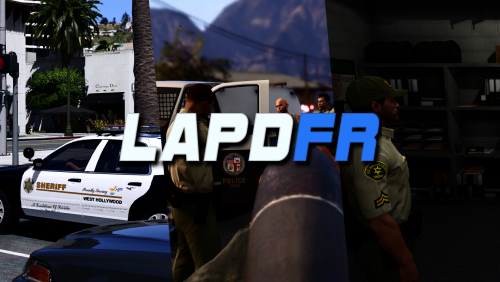 Hello there, Appologies for the late reply. The video won't repeat. The original Rockstar loading screen is 12 seconds long. This follows the same concept and replace the loading screen and increases the loading area from 12 seconds to 10 seconds and then will follow the normal GTA:V loading sequence.
 -
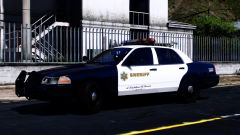 Hello there. These Liveries are custom made, and not currently publically released by myself. You can find alternative Liveries on LCPDFR from other creators.
 -
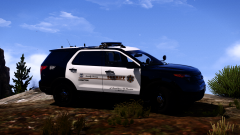
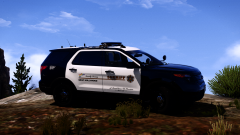
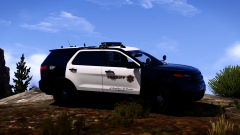
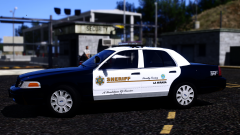
Patrol photographs through the career of Deputy Kelly Severide & Sergeant Allison Rafferty.
-
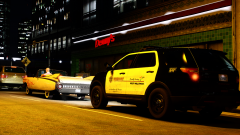 Screenshot_23.png
-
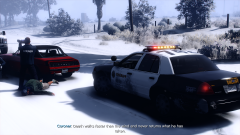 GTA5 2021-12-29 04-01-01.png
-
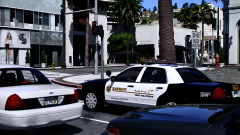 Screenshot_36.png
-
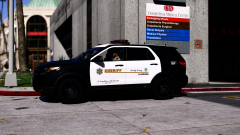 Screenshot_33.png
-
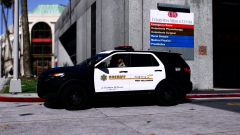 Screenshot_28.png
-
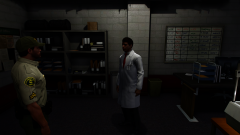 Screenshot_26.png
-
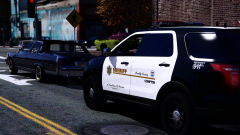 Screenshot_25.png
-
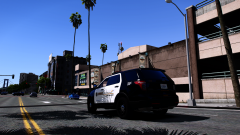 Screenshot_24.png
-
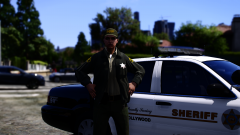 Sergeant Allison Rafferty #2
-
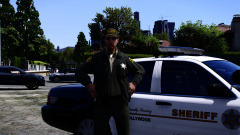 Sergeant Allison Rafferty #1
-
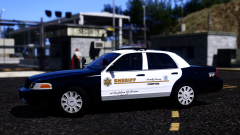
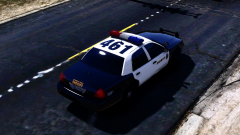 LASD CVPI #4
-
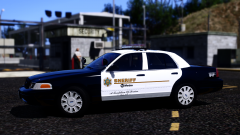
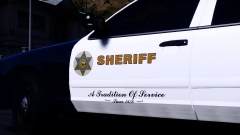 LASD CVPI #3
-
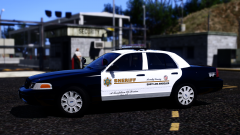
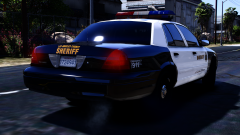 LASD CVPI #2
-
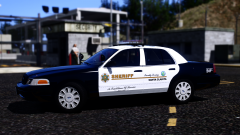
LASD CVPI #1
-
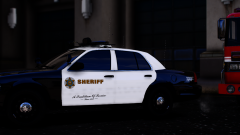 What could this possibly be?
-
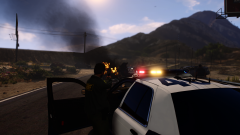 Screenshot_10.png
-
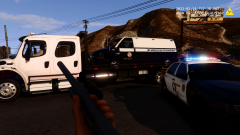 Screenshot_7
-
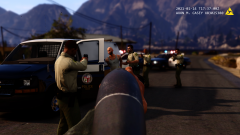 Screenshot_6
-
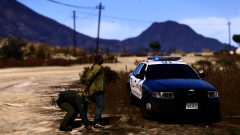 Screenshot_5.png
-
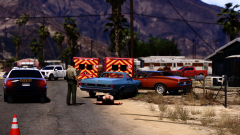 LASD Vehicle Collission
-
-
From the album: LASD Patrol
© Copyright 2021 Pigeon Studios
-
I can easily create a longer introduction video, and probally will for those who'd like it longer. Rockstars original launcher is 12 seconds longer and some people may want to load quicker than wait 15-30 seconds to startup. There will be an updated version with a longer video introduction and some more effects and a LSPDFR version for those who don't play primarily Los Angeles.
-
From the album: LASD Patrol
© Copyright 2021 Pigeon Studios
-
From the album: LASD Patrol
© Copyright 2021 Pigeon Studios
-
From the album: LASD Patrol
© Copyright 2021 Pigeon Studios
-
From the album: LASD Patrol
© Copyright 2021 Pigeon Studios
-
From the album: LASD Patrol
© Copyright 2021 Pigeon Studios
-
From the album: LASD Patrol
© Copyright 2021 Pigeon Studios
-
From the album: LASD Patrol
© Copyright 2021 Pigeon Studios
-
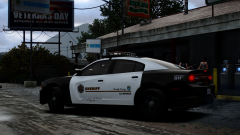
From the album: LAPD & LASD Development
© Copyright 2021 Pigeon Studios
-
-
From the album: LAPD & LASD Development
© Copyright 2021 Pigeon Studios
-
From the album: LAPD & LASD Development
© Copyright 2021 Pigeon Studios
-
From the album: LAPD & LASD Development
© Copyright 2021 Pigeon Studios
-
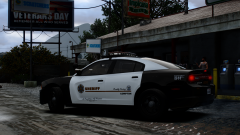
From the album: LAPD & LASD Development
© Copyright 2021 Pigeon Studios
-
From the album: LAPD & LASD Development
© Copyright 2021 Pigeon Studios
-
From the album: LAPD & LASD Development
© Copyright 2021 Pigeon Studios
-
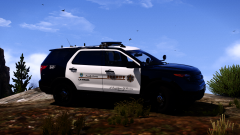
From the album: LAPD & LASD Development
© Copyright 2021 Pigeon Studios
-
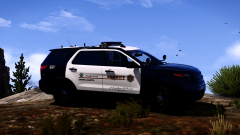
From the album: LAPD & LASD Development
© Copyright 2021 Pigeon Studios
-
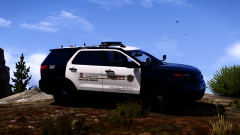
From the album: LAPD & LASD Development
© Copyright 2021 Pigeon Studios
-
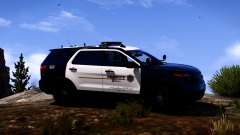
From the album: LAPD & LASD Development
© Copyright 2021 Pigeon Studios