GTAStephen
Members
-
Joined
Everything posted by GTAStephen
-
 .oiv does NOT cause issues directly Did experience slight game stability when some callouts spawn, annoying low quality audio plays for every call dispatch, and on screen full width banner when going on duty. Callouts occasionally spawn very far from user (7.5mi+)
- 50 comments
- 5 reviews
-
-

- 1
-
-
- us
- rph
- lspdfr callout
- open source
-
Tagged with:
-
.thumb.png.656f907bc2febc81911b0b821cb502c8.png) EXCELLENT! In the top of all LSPDFR enhancements I have tried. Can't wait to see where this goes.
EXCELLENT! In the top of all LSPDFR enhancements I have tried. Can't wait to see where this goes.- 351 comments
- 45 reviews
-
-

- 1
-
-
 Similar to above I have experienced general instability when using this callout pack. It also appears the number of spawn locations is quite low for many callouts, and they often seem to follow more or less the same general path.
- 356 comments
- 25 reviews
-
-
- 2
-
-
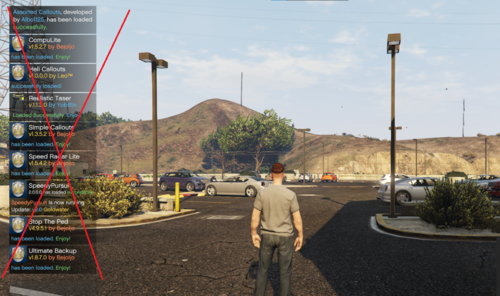 Works as advertised and intended. Great plugin overall.
 -
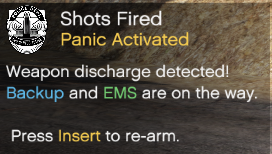 Works great! Overall a great plugin.
 -
I don't typically put too much thought into these updates, but this one I couldn't help but think about exactly this. I would say a majority of players are probably the total crazy people, or ones that don't 100% follow the rules. The two universities better have a pretty good system to remove that bad data, or the entire study quite honestly is going to be a pile of garbage and a waste of time.
-
-
Hello, I already tried changing the plugin timeout value to 60000 and forcing windowed mode. Yet it still freezing at the black screen with a little loading icon in the corner. I enabled "Safe Mode" thinking that would change something maybe but no didn't work. I've attached by RPH log to this thread to assist in the solving of this very aggravating issue. RagePluginHook.log
.thumb.png.656f907bc2febc81911b0b821cb502c8.png)