.jpg.9cdea3b00413559df937ff066995edd9.jpg)

alrightdude
Members
-
Joined
Everything posted by alrightdude
-
 Really nice, I'd love to see some more animations; Some medic related animations, more walkable prop animations; dufflebag, camera, drinking/holding coffee, smoking (Quick Animations by Faya had some of those things.) 👍
 -
-
-
-
-
-
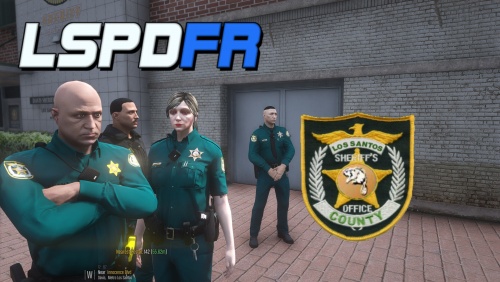 Are you able to make like a whole LSCSO eup pack? Jackets, hats, more clothes ... etc There really aren't any other free packs that work with 9.3
- 5 comments
- 2 reviews
-
-
Those are Madrazo‘s henchmen (Story related, exiled from LS) they will just keep respawning. You either have to progress further with the story or download a savegame.
-
-
 Any updates? Since I only found one outdated pack on here and one for $31 elsewhere.
 -
-
 Great mod
 -
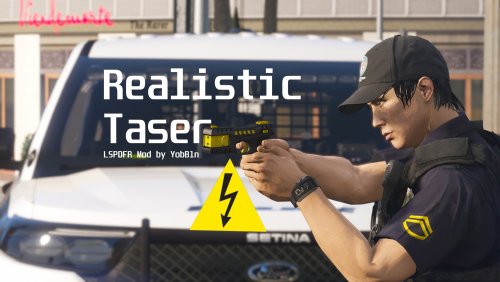 Depending on how much % you set it to, the taser will either be successful or unsuccessful. Just like in real life, where tasers don't always work.
 -
Holy. Just what I was looking for. Thank you very much, yobin. Will definitely download it.
-
 Don't think there is one for SP. I usually just delete things (peds, cars, etc.) via the spooner from the menyoo menu.
 -
-
.thumb.jpg.c8fb8233aeb461877dcf41988a06c1d6.jpg) Will definitely try it out. And. Yes, I would also say that this file belongs to the "Visual & Data File" category.
Will definitely try it out. And. Yes, I would also say that this file belongs to the "Visual & Data File" category. -
 Hm
Hm -
-
-
 Love it!
 -
-
-
-
 I didn't find anything in the config.txt that mentioned 'DefaultToNative' Are you sure it was mentioned there ...? (If it was then I am just dumb.)
- 1,361 comments
- 85 reviews





.thumb.jpg.c8fb8233aeb461877dcf41988a06c1d6.jpg)